Published April 25, 2024
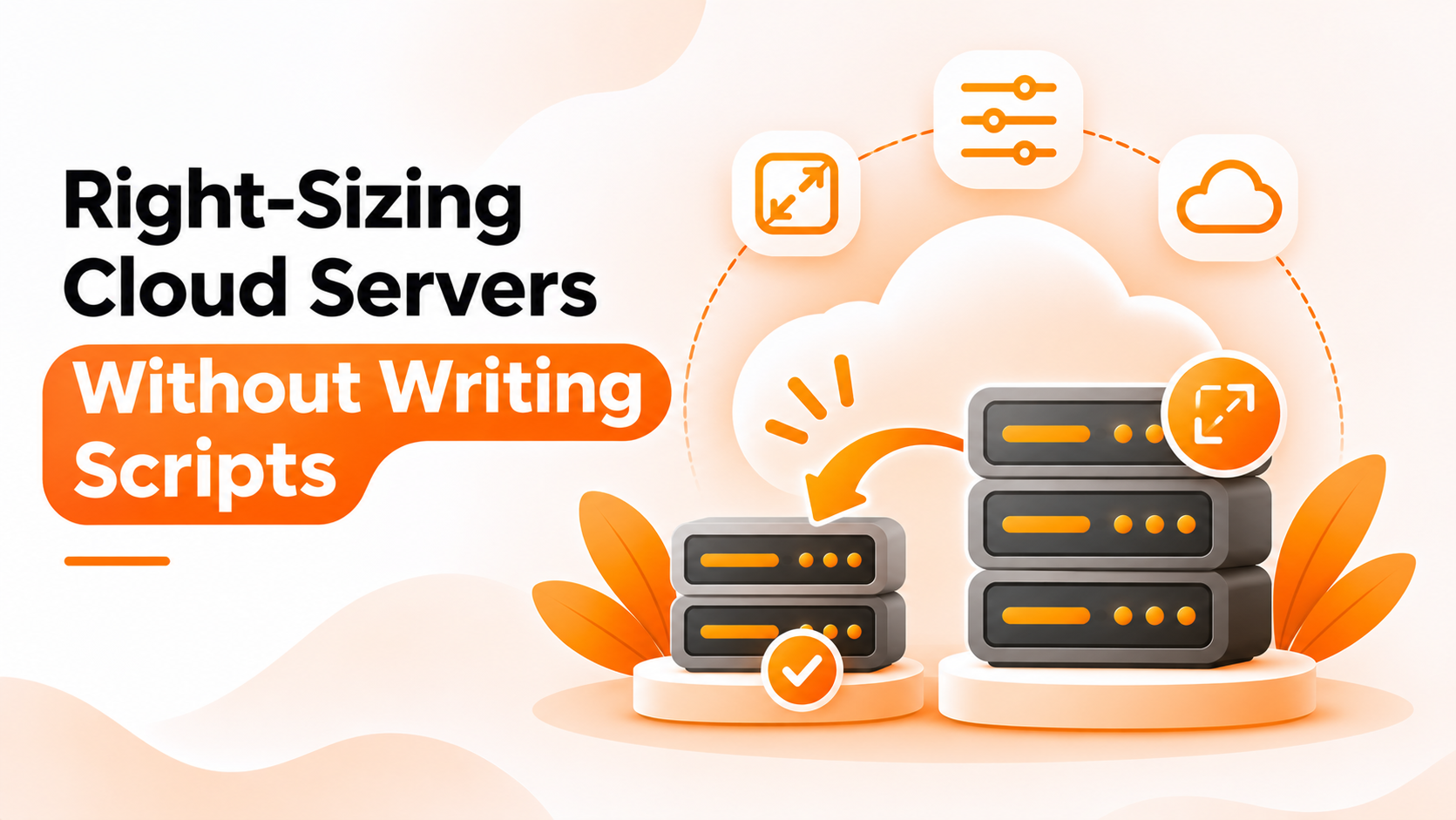
Servers are rarely the right size for long. A team picks a large instance to be safe, the application settles in, and months later the machine sits mostly idle. Or the opposite happens: traffic grows, the server struggles, and someone resizes it in a hurry. Either way, the size chosen on day one is only a guess.
Changing size is simple in principle, but doing it repeatedly across many servers is tedious. That is the appeal of cloud server upgrade downgrade automation. This guide compares two ways to approach it and explains where Bigbell fits. The first sections are general industry knowledge. The last section covers only what Bigbell provides.
The common method is to write code. A script calls the cloud API to stop a server, change its size, and start it again. It runs from a pipeline, a scheduled function, or an engineer's laptop.
Scripts offer full control. You can add checks before the change, such as confirming a backup exists, send messages afterwards, handle odd cases for particular servers, and cover any cloud with the right library. For teams that already automate everything in code, this fits naturally.
The weaknesses are upkeep and spread. Each cloud has its own API and rules for resizing, so a multi cloud team ends up with several scripts. Someone must maintain them, secure the credentials they use, and explain them to new colleagues. Changing a plan, such as moving a resize to a different night, often means editing code.
The second approach lets you describe the change in an interface. You select a server, enter the new size, and choose when it should happen. The platform carries out the steps using the cloud credentials you connected.
The benefit is that more people can do it safely. The plan is visible, changes need no deployment, and the same method applies to more than one cloud. You spend less time on API details.
The costs are limits and trust. The platform can only perform the actions it supports, and it will not include custom checks unless it offers them. You also give it permission to change your servers, so access needs care. Finally, a platform does not decide the right size. It only carries out the size you choose.
| What matters | Custom scripts (Option A) | Platform schedules (Option B) |
|---|---|---|
| Control | Full; add checks, messages and special cases | Limited to supported actions |
| Simplicity | Needs code | A resize becomes a form |
| Multi cloud coverage | One version per cloud | One interface across clouds |
| Safety | Can include careful checks | Clear, visible schedules are easier to review |
| Choosing the size | Needs real usage data | Needs real usage data |
Choose scripts when resizing is tied to complex logic, such as scaling decisions that depend on other systems. Choose a platform when your need is simple: change this server to that size at this time.
Whichever you use, follow a few habits. Base decisions on real usage over a meaningful period, not a single busy day. Remember that resizing a virtual machine usually means stopping it, so expect a short outage and pick a quiet time. Confirm that the new size is available in the region and suits the workload. Take a backup first for important servers, and resize in small steps.
Bigbell follows the platform approach. In Resource Lifecycle Management, you can schedule a modify action for EC2 instances, Azure virtual machines, and Google Cloud virtual machines. You enter the current size and the new size, and a cron expression for when the change should run. Bigbell shows the expression in plain English so you can check it.
When the schedule runs on EC2, Azure, or Google Cloud, Bigbell stops the server, changes its size, and starts it again. That means downtime, and the server will be running afterwards. For RDS, Bigbell changes the database instance class and applies the change immediately. You can use two schedules to upgrade a server for a busy period and downgrade it afterwards. Bigbell's AI chat can create and manage these schedules too.
On the decision side, the Cloud Security Scanner reports servers that look over-provisioned. A server is flagged when both its average CPU and average memory stay below 50 percent over the period you view, which can be 24 hours, 7 days, or 30 days. Servers averaging 85 percent or higher on CPU or memory are flagged as high usage. This only works for servers where Bigbell's CPU and memory monitoring are set up. The finding suggests downsizing, but the choice and the size are yours.
Know the limits. Bigbell does not resize servers on its own, does not recommend a specific size, and does not check that the new size is valid or available. Schedules run in Indian Standard Time. We have not verified failure notifications, automatic rollback, or any measurement of savings.
Book a demo to see how resize schedules and utilization findings work together.
What is right-sizing? Matching a server's size to the load it actually carries.
Why not size generously to be safe? Oversized servers waste money, and the extra capacity may never be used.
Does resizing cause downtime? Usually yes. Servers are typically stopped while their size changes.
Can Bigbell resize servers on a schedule? Yes, for EC2, Azure virtual machines, and Google Cloud virtual machines.
What about RDS? Bigbell can schedule an instance class change for RDS and applies it immediately.
Will Bigbell choose the new size? No. You enter the size you want.
Does Bigbell check that a size is valid? We have not verified this, so confirm availability in your cloud first.
How does Bigbell spot over-provisioned servers? It flags servers whose average CPU and memory both stay under 50 percent over the chosen period.
Does that finding need monitoring set up? Yes. CPU and memory monitoring must be configured for the server.
Does Bigbell flag servers that are too small? It flags servers averaging 85 percent or higher on CPU or memory.
Can I reverse a resize? Yes, by scheduling a change back to the previous size.
Is the server running after a resize? Yes. Bigbell starts it again after changing the size.
What should I do before resizing an important server? Take a backup, choose a quiet time, and note the current size.
How long should I watch usage before resizing? Long enough to include normal peaks, such as a month end run, not just a quiet week.
Is downsizing always safe? No. A smaller size can cause slowdowns under peak load, so resize in small steps and watch the result.
Can I resize to a different instance family? That depends on the cloud and the workload, so check compatibility with your provider before scheduling it.
Does Bigbell show how much a resize saves? No. It does not calculate savings, so compare your bills.