Published Nov. 5, 2023
Nothing disrupts a peaceful workday quite like a server crashing because its storage ran out. When disk monitoring is skipped or poorly configured, the consequences are immediate and severe: databases stop accepting new records, applications fail to log critical errors, user sessions drop, and background jobs grind to a halt. What could have been a simple five-minute cleanup task escalates into a full-blown production outage that impacts your customers and damages your team's reputation.
When a server operates efficiently, the disk works silently in the background. But when capacity reaches its limit, the fallout spreads rapidly across your entire architecture. Storage is the foundation of virtually every application process. Operating systems rely on swap space when memory runs out, applications write crucial audit logs to track user behavior, and databases constantly read and write temporary files to execute complex queries. If the underlying disk fails to accommodate these processes, the entire system collapses.
Modern infrastructure is highly dynamic. Microservices, containerized workloads, and automated deployments are constantly consuming and freeing up storage across your servers. Relying on manual checks or waiting for end-users to report an application issue is no longer a viable strategy for any modern engineering team. Proactive disk monitoring is the only reliable way to stay ahead of storage capacity issues. By keeping a close and continuous eye on your storage health, you can predict when drives will fill up and take deliberate action long before a critical threshold is ever breached.
To help your team maintain optimal storage health, eliminate blind spots, and avoid unexpected production outages, we have compiled the ultimate checklist. Following these structural steps will ensure your infrastructure remains resilient, highly available, and capable of handling future scale.
To guarantee comprehensive visibility into your storage infrastructure, implement the following disk monitoring best practices across all your environments:
Skipping any single item on this checklist leaves a dangerous blind spot in your infrastructure. Here is exactly why each of these steps is critical for your team's long-term success:
Monitoring utilization percentages is the absolute foundation of effective disk monitoring. By knowing exactly how much space is left on a drive at any given moment, your team can plan capacity upgrades, delete archived logs, or clean up temporary files before the system reaches 100% and inevitably crashes. This single metric provides the most direct visibility into your storage runway, allowing you to scale up hardware proactively rather than reactively.
Tracking read and write activity is equally important because storage issues are not solely about capacity; they are also heavily dependent on performance throughput. If an application suddenly spikes in disk write bytes, it might indicate a runaway logging process, a malicious script, or a database indexing issue. Identifying these I/O spikes early helps you optimize your applications and extend the lifespan of your physical hardware.
Configuring multi-tier threshold alerts is the best way to prevent alert fatigue within your engineering team. If every single notification is marked as a critical emergency, developers will eventually start ignoring them. By separating early warnings from critical emergencies, your team knows exactly when to schedule a routine cleanup task and when they need to drop everything to fix an immediate operational threat.
Setting up multi-channel notifications ensures that critical alerts are never missed, regardless of the time of day. A standard warning email might be perfectly sufficient during normal business hours, but a critical storage failure at 3:00 AM requires an SMS or an automated voice call to successfully wake up the designated on-call engineer.
Finally, validating incident recovery ensures that long-running issues do not slip through the cracks. Tracking continuous downtime helps you identify abandoned servers, deprecated infrastructure, or unresolved underlying hardware failures that require a deeper architectural review rather than a quick patch.
Manually implementing and maintaining this checklist across dozens or hundreds of servers is nearly impossible. Setting up these workflows manually involves writing complex bash scripts, configuring third-party alert routers, and maintaining an ever-growing list of cron jobs. This introduces unnecessary complexity and technical debt. That is precisely where BigBell steps in. BigBell is purposefully built to automate every aspect of this checklist, giving your DevOps team complete operational peace of mind.
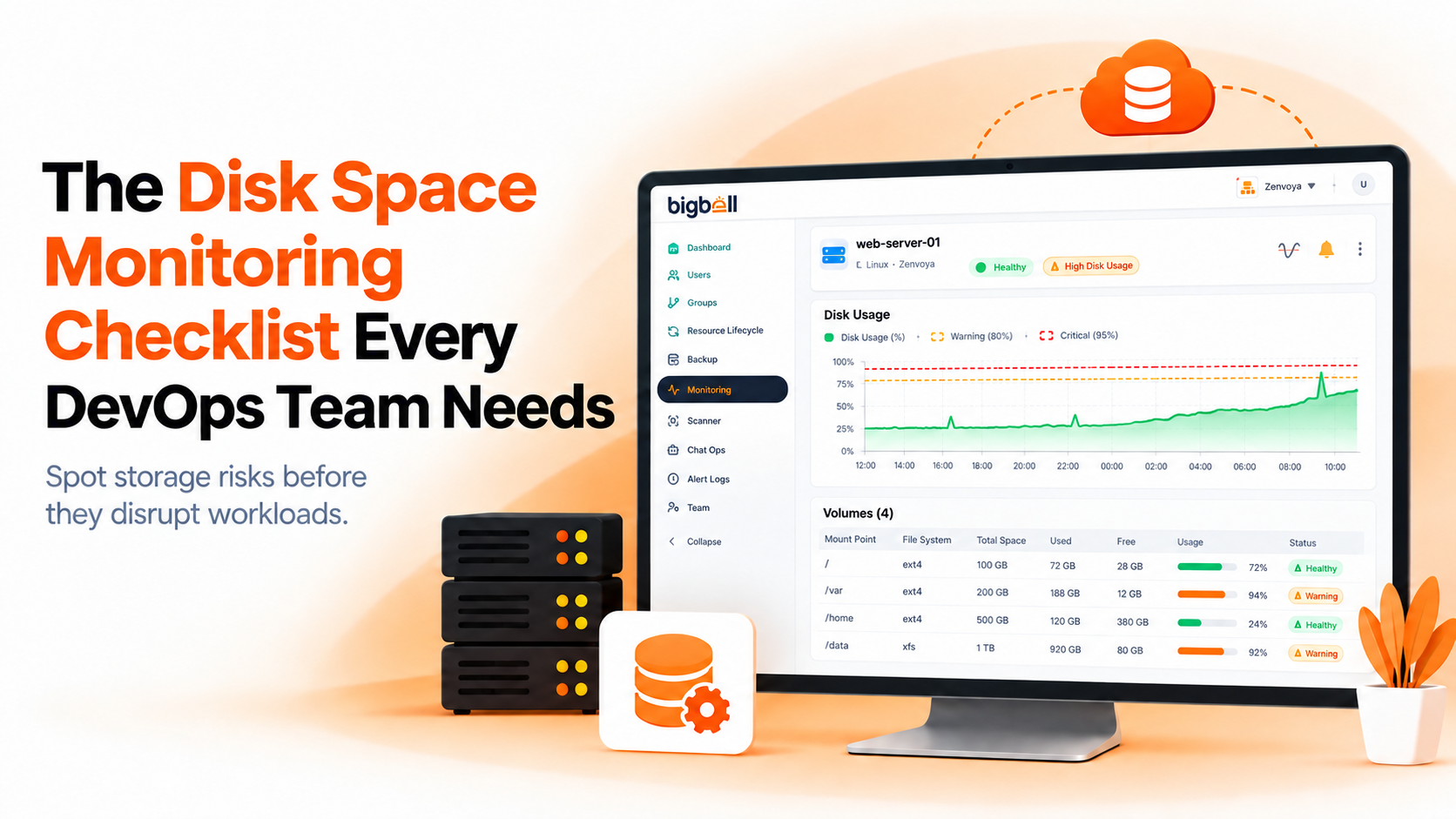
BigBell's built-in Disk Plugin natively handles your core disk monitoring requirements. It automatically tracks your disk utilization percentages alongside exact disk read bytes and disk write bytes. All of this information is visualized in an intuitive, unified monitoring graph, allowing your team to analyze historical trends and spot I/O anomalies instantly.
When it comes to thresholds, BigBell allows you to define custom Warning and Critical limits tailored to your specific storage metrics. If a threshold is breached, BigBell's advanced multi-channel delivery system immediately takes over. Instead of relying on a single point of failure, you can route your alerts via Email, SMS, Voice Calls, or Webhooks, ensuring the right engineer is notified at the right time.
Furthermore, BigBell's backend engine is designed to intelligently track ongoing incidents over time. It actively monitors long-running outages, automatically identifying alerts that have been continuously down for over 72 hours. This helps administrators quickly prune dead resources and focus entirely on genuine infrastructure health.
Don't wait for a disk failure to bring down your production environment. Discover how easy infrastructure management can be with our comprehensive tools. Try BigBell free today and automate your storage health effortlessly.
It is the continuous, automated process of tracking the health, capacity, and performance of your storage drives. This includes measuring how much space is currently being used, how much space is available, and the speed at which data is being read from or written to the disk.
While capacity tells you how much space is left, tracking read and write bytes tells you exactly how hard your disk is working. Unusually high write activity can indicate a software bug, such as an application stuck in an infinite logging loop, which can degrade overall server performance and quickly exhaust available space.
BigBell allows you to set multiple, distinct warning levels for your metrics. For example, you can configure a standard Warning alert when disk usage hits 80%, giving your team time to investigate. If the usage climbs to 95%, BigBell triggers a Critical alert, signaling an immediate emergency that requires urgent intervention.
Yes, BigBell features robust multi-channel notification routing. Depending on the severity of the alert, you can configure the system to send an email for standard warnings, or trigger SMS messages and automated voice calls for critical outages, ensuring your on-call engineers are always reachable.
Yes. BigBell continuously tracks the state of your infrastructure and logs the exact time an incident starts. It features advanced backend operations designed to flag alerts that have been in a continuous down state for extended periods, such as 72 hours, helping you maintain a clean and active monitoring environment.
It is incredibly straightforward. BigBell's native Disk Plugin is built directly into the platform. Once configured on your servers, it automatically begins collecting utilization percentages and I/O metrics without requiring complex custom scripting.
While it will not prevent crashes caused by memory leaks or CPU exhaustion, strictly following a storage checklist will virtually eliminate production outages caused by full disks or undetected storage hardware bottlenecks.