Published Oct. 25, 2025
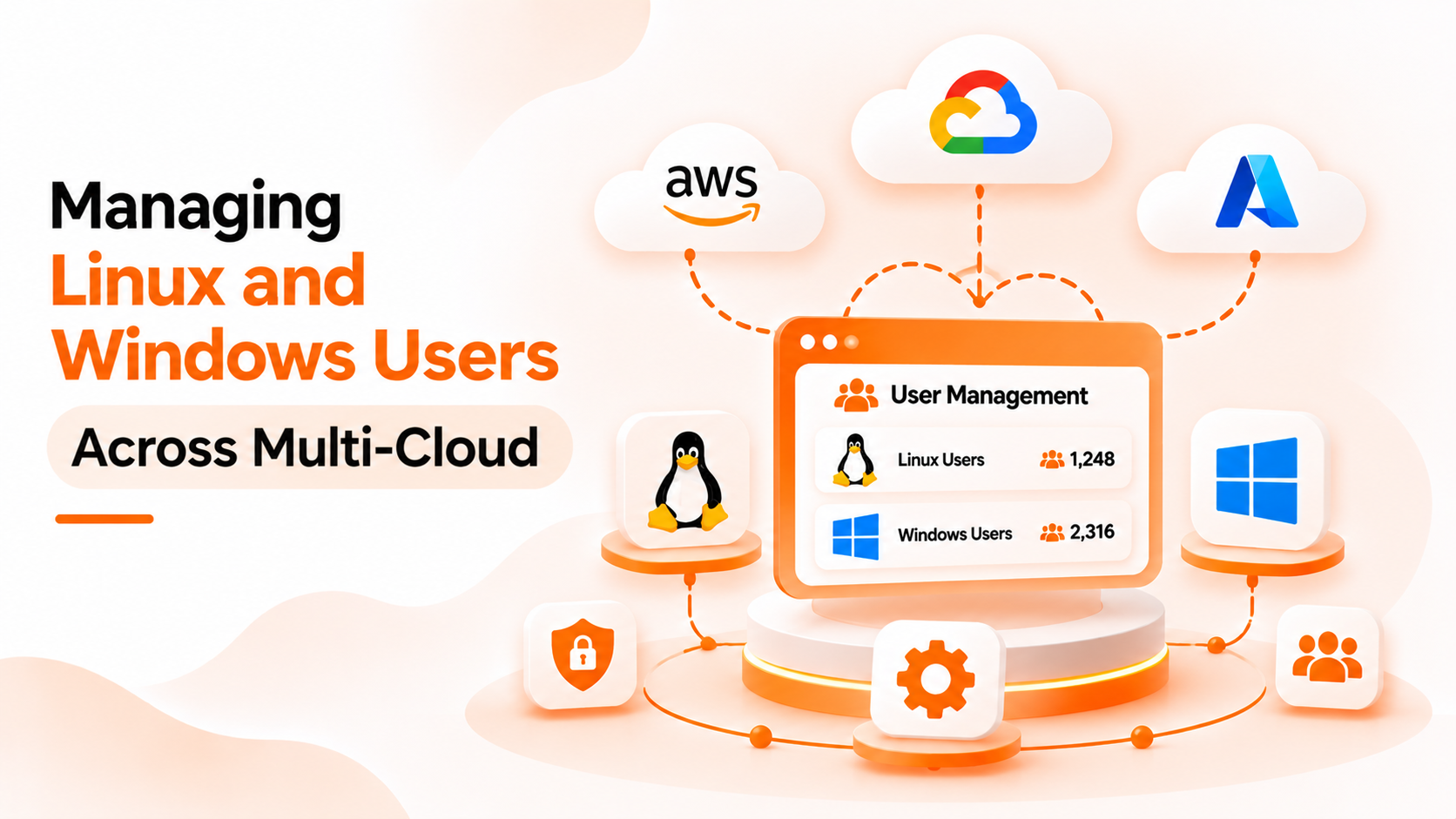
A new engineer joins on Monday. By Wednesday they need access to a few Linux servers on AWS, a database host on Google Cloud, and a Windows machine on Azure. Each of those environments has its own way of creating accounts, and nobody wrote down which servers already have which people. Across a growing team, user access quickly becomes hard to keep tidy.
This guide compares two ways to handle centralized Linux Windows user management: managing accounts on each server, or using one central directory. The first sections are general industry knowledge. The last section covers only what Bigbell provides, and it is narrower than the title might suggest.
The default approach is local accounts. Every Linux server has its own user list and its own SSH keys. Every Windows server has its own local users or relies on whatever sign in method the team set up for it. Cloud providers add their own options, such as keys attached at launch or provider specific access tools, and each one works differently.
This approach has real advantages. It needs no extra system, it is easy to understand on a single machine, and a problem on one server cannot spread to others. For a handful of servers owned by two or three people, it is perfectly reasonable.
The cost grows with scale. Adding someone means repeating the same steps on every server. Removing someone means remembering every place they were added. Different clouds use different methods, so no one person knows the full picture. Over time, accounts and keys pile up that nobody can explain, and stale access outlives the people it was meant for.
The second approach keeps users and groups in one directory, and servers look up who is allowed in from that directory. People are created once, assigned to groups, and removed in one place. The servers become consumers of a single list instead of owners of their own.
The main benefit is consistency. The same person has the same identity on every connected server, regardless of which cloud the server lives on. Changes happen once, and teams can answer simple questions like "who has access?" from one place instead of logging into many machines.
There are downsides. The directory becomes a critical system, since servers depend on it for lookups. It needs careful protection and reliable availability. Setup takes effort, and each server must be configured to use it. Windows and Linux also use different tools for this job, so a mixed environment often needs more than one solution.
| What matters | Local accounts (Option A) | Central directory (Option B) |
|---|---|---|
| Speed of change | Fast only for a one-off task on one server | One edit replaces many |
| Visibility | Dozens of separate files | One list of users and groups |
| Independence | No outside dependency | Servers depend on the directory |
| Setup effort | Nothing to install | Each server must be configured |
| Offboarding | Depends on memory and discipline | Removal happens in one place |
Stay with local accounts if you run only a few servers, the team rarely changes, and one person truly knows every machine.
Move to a central directory when people join and leave regularly, when servers span several clouds, or when you can no longer say with confidence who can log in where. Plan for the directory itself: decide who administers it, how it is backed up, and what happens if it becomes unreachable. If you run both Linux and Windows, check whether one tool really covers both. Many do not.
Bigbell's Centralized Authentication follows the central directory approach, but for Linux servers only. It does not manage Windows users.
Here is what it does. Bigbell keeps a directory for your organization with users and groups. Each organization starts with three groups: administrators, developers, and readonly. Members of the administrators group get full sudo rights, and the readonly group is limited to a short list of commands for viewing files, such as cat, less, head, tail, grep, and wc. You can add, edit, and delete users and groups from Bigbell. When you add a user, Bigbell creates an SSH key pair for them and stores the public key in the directory.
To connect a server, Bigbell generates a setup command for your organization. Running it on a Linux server installs the packages that let the server look up users and public keys from the directory. The script uses the apt package manager, so it suits Debian and Ubuntu style systems. Because it runs on the server itself, it does not depend on a particular cloud provider.
The limits are important. There is no Windows support. Bigbell also does not offer single sign on, multi factor authentication, or a login history. If your environment includes Windows servers, you will need another tool for those machines.
Book a demo to see how the directory and setup command work with your Linux servers.
Can Bigbell manage Windows users? No. Bigbell's Centralized Authentication is built for Linux servers.
Which Linux systems does the setup script support? It uses apt, so it targets Debian and Ubuntu style systems.
Does it work across different clouds? The setup script runs on the server itself and does not use cloud specific features, so the same approach applies wherever the server runs.
What groups does Bigbell create? Administrators, developers, and readonly.
What can the readonly group do? Run a short list of viewing commands such as cat, less, head, tail, grep, and wc through sudo.
Does Bigbell create SSH keys for users? Yes. A key pair is created when a user is added, and the public key is stored in the directory.
Can I change a user's group later? Yes. Users can be edited, including their group.
Can I remove a user? Yes. Users and groups can be deleted from Bigbell.
Why use a central directory at all? It gives one list of users and groups, so changes happen once instead of on every server.
What is the biggest risk of a central directory? Servers depend on it, so it needs protection and reliable availability.
Is local account management ever the right choice? Yes, for a few servers with stable teams and clear ownership.
Does Bigbell offer single sign on or multi factor authentication? No. These are not part of the feature described here.
How do I add a server? Run the setup command that Bigbell generates for your organization on the server.
Do I need a separate tool for Windows? Yes, if Windows servers are in scope.
Can I use Bigbell's directory for a Windows server's login? No. The setup script and directory design cover Linux servers only.