Published Dec. 25, 2025
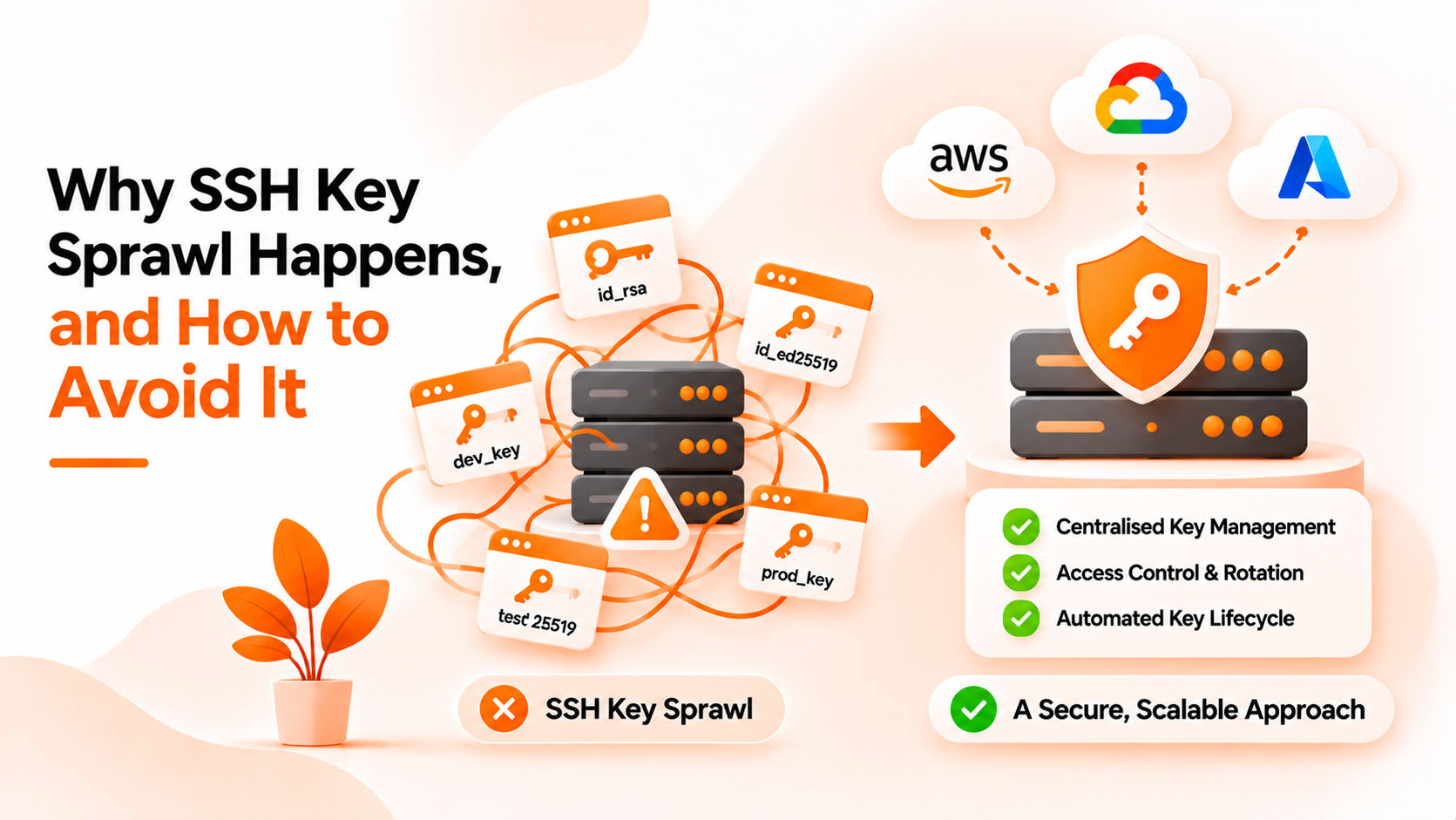
Nobody decides to have hundreds of SSH keys scattered across their servers. It happens one favor at a time. An engineer needs quick access, so a key is pasted into a file on a server. A contractor joins for a month. A script needs to log in somewhere, so it gets a key of its own. Two years later, no one knows which keys are still needed, who owns them, or where they are installed.
This is SSH key sprawl, and it is common even in careful teams. This guide compares two ways of handling keys and explains where Bigbell fits. The first sections are general industry knowledge. The last section covers only what Bigbell actually provides.
On a typical Linux server, the keys allowed to log in are listed in a file in each user's home directory. Adding access means adding a line to that file. Removing access means finding and deleting the line.
This method is simple, built into SSH, and needs nothing extra. For one server and one or two people, it works perfectly well. It also keeps each server independent, since nothing outside the machine is needed to decide who can log in.
The trouble is that the list lives in many places. There is no single record of which keys exist, whose they are, or when they were added. Keys are often copied between people or reused across servers, and comments inside the key file are easy to get wrong or leave blank. When someone leaves, removing their access requires visiting every server. Missing one leaves a working key behind, and nobody notices because everything still looks normal.
In the second approach, servers do not rely only on local files. They ask a central directory which public keys belong to which user. SSH supports this through a setting that runs a command to fetch the allowed keys at login.
The benefit is a single source of truth. Adding a key, replacing a key, or removing a person happens in one place, and every connected server follows. It becomes realistic to answer "whose key is this?" because keys are tied to named users instead of scattered lines in files.
The downsides are practical. The directory must be available when people log in, so it needs care and protection. Setup is more work than editing a file. And the directory only controls the servers connected to it. Keys that already sit in local files remain until someone removes them.
| What matters | Keys on each server (Option A) | Central directory (Option B) |
|---|---|---|
| Ownership | Often unclear | Each key belongs to a named user |
| Removal | Visit every server | One deletion |
| Simplicity | Nothing to install or depend on | More setup work |
| Resilience | Logins work even if other systems are down | Directory must be available at login |
| Cleanup of old keys | Manual | Manual; old local keys stay until removed |
Local files are enough when you have a few servers, a stable team, and a person who knows every key.
Choose a directory approach when people come and go, when servers are spread across clouds, or when you cannot say who owns each key. Whichever you pick, follow a few habits. Give every person their own key. Use separate, named keys for automation instead of borrowing a person's. Replace keys when a laptop is lost. Keep a record of why each key exists. And review all of it on a schedule, since sprawl returns when nobody is watching.
Bigbell's Centralized Authentication follows the directory approach for Linux servers.
In Bigbell, each user belongs to your organization's directory. When you add a user, Bigbell generates an SSH key pair for them and stores the public key in the directory. The private key can be downloaded once. After the download, Bigbell keeps a backup and clears the original, so the user should save it immediately. Since Bigbell creates the pair, your security team may want to consider that as part of their review.
To connect a server, you run a setup command generated by Bigbell. It configures the server to fetch public keys from the directory at login. The script adds this lookup. It does not remove keys already stored on the server, so old files still need a manual review.
If a key is lost or exposed, you can regenerate it for that user from Bigbell. You can also delete a user to remove that person's key from the directory.
The limits matter. Bigbell does not offer automatic key expiry or scheduled rotation, a report of keys found on servers, or support for Windows servers. Keys for automation and service accounts are not part of what has been described here. Bigbell gives you one place for user keys, and the habits above remain your team's job.
Book a demo to see how user keys are created and managed.
What is SSH key sprawl? It is the buildup of SSH keys across servers with no clear record of who owns them or whether they are still needed.
Why is it a problem? Unknown keys can leave access in place for people who should no longer have it.
Does moving to a directory remove old keys? No. Existing keys on servers must be reviewed and removed separately.
Does Bigbell generate SSH keys? Yes. A key pair is created when you add a user.
Where is the public key stored? In your organization's directory, which connected servers read at login.
How is the private key handed over? It can be downloaded once, after which Bigbell keeps a backup and clears the original.
Can I replace a key? Yes. Bigbell can regenerate an SSH key for a user.
Does Bigbell rotate keys automatically? No. Regeneration is done manually.
Does the Bigbell setup script delete keys already on a server? No. It adds a key lookup and leaves existing keys in place.
Can Bigbell find keys stored on my servers? No. It does not scan servers for keys.
Does it work for Windows? No. It is built for Linux servers.
Should automation share a person's key? No. Use a separate, named key so it can be tracked and replaced on its own.
How often should keys be reviewed? At least when people leave and on a regular schedule, such as every quarter.
What should I record about each key? Its owner, purpose, where it is used, and when it was created.
Can one person have more than one key? Yes, for example one per laptop, as long as each is recorded and removed when the device is retired.
What should I do when a laptop is lost? Replace that person's key right away and remove the old one everywhere it was installed.