Published April 26, 2026
Many companies do not run on one cloud. A core application sits on AWS, an analytics workload lives on Google Cloud, and a few Droplets on DigitalOcean host something a team spun up quickly. Each provider offers its own way to protect servers, and each works a little differently.
Choosing between cloud backup tools therefore comes down to one question: do you manage backups separately in each provider, or from one place? This guide compares both approaches, gives practical best practices, and is clear about what Bigbell covers.
The first approach uses what every cloud already provides. On AWS, a server's disk is protected with machine images (AMIs) or volume snapshots, and AWS also offers a dedicated backup service. Google Cloud protects virtual machine disks with snapshots, which can be taken on a schedule. DigitalOcean offers Droplet backups, which are automated, and manual snapshots. Provider features change, so confirm details in each provider's current documentation.
The strengths are real. Native tools are built for their own platform, integrate with its permissions and billing, and need no extra software. If your whole estate lives on one provider, they are often the simplest answer.
The weaknesses appear with more than one cloud. Each provider uses different terms, different consoles, and different ways to set schedules and retention. Checking whether every server is protected means repeating the same investigation in three places. A gap in one provider is easy to miss because the person watching another provider's console cannot see it.
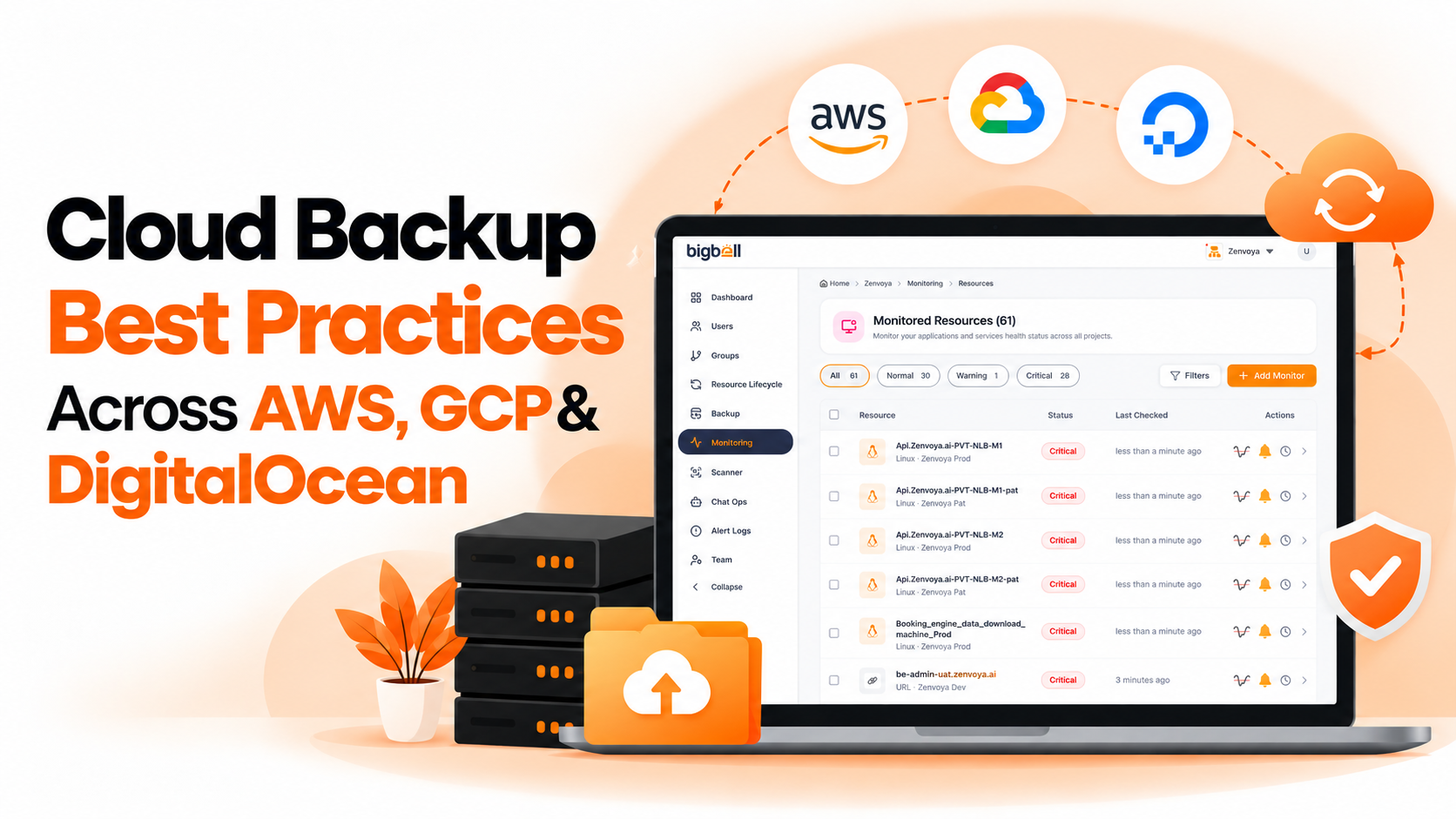
The second approach places a tool above the providers. It connects to your accounts, lists servers and their backups in one view, and lets you set schedules from the same place.
The benefit is consistency. You use one routine to set frequency and retention, and one view to see which servers have recent backups. For teams with several projects or customer environments, that shared view is often the main attraction.
The trade-offs are equally clear. You must grant the tool access to your cloud accounts, so permissions deserve care. Supported providers differ from tool to tool, and a centralized tool is only useful for the clouds it actually supports. It also adds one more system to maintain.
| What you need | Native provider tools (Option A) | Centralized tool (Option B) |
|---|---|---|
| Setup | Separate per provider | One connection per account |
| One view across clouds | No | Yes, for supported providers |
| Schedules and retention | Different in each console | One consistent method |
| Spotting servers with no backup | Check each provider separately | Visible in a single list |
| Provider coverage | Only its own cloud | Limited to what the tool supports |
| Extra access to grant | None beyond the provider | Credentials for each connected account |
| Restore testing | Done by you | Done by you |
Stay with native tools if nearly everything runs on one provider, your team knows that console well, and servers rarely change. Adding another tool would give you little.
Consider a centralized tool if you run on two or more clouds, manage several projects, or struggle to answer "which servers have no recent backup?" without opening several consoles.
Whichever you choose, these practices apply on every cloud:
Many teams end up mixed: a centralized tool for the clouds it supports and native tools for the rest.
Bigbell is a centralized option with a defined scope. Its backup management feature supports AWS, Azure, and Google Cloud. It does not manage backups on DigitalOcean.
For the supported clouds, it offers:
Scheduled backups. Daily, weekly, or monthly schedules with a retention period in days, which can be edited or deleted later. Each run creates an image on AWS or a snapshot on Azure and Google Cloud, and removes the copies it created that have passed retention.
Backup discovery. Each server shows its number of backups and how many days ago the latest one was taken, so a server with no backup shows "None."
Scanner findings. The infrastructure scanner flags AWS instances with no image or snapshot as a high-severity finding.
For DigitalOcean, Bigbell can monitor a Droplet like any Linux server through an installed agent, but backups there should remain with DigitalOcean's own backup and snapshot features. Bigbell also does not test restores.
If you are setting up schedules, read cron-based backup scheduling, explained. To audit what you already have, see how to check if your servers are being backed up.
Book a demo and see backup scheduling and discovery on your own cloud accounts.
Do I need a separate tool if I only use one cloud? Often not. Native tools may be enough if everything sits on a single provider and your team knows it well.
Can Bigbell manage DigitalOcean backups? No. Bigbell backup management covers AWS, Azure, and Google Cloud. Use DigitalOcean's own backups and snapshots there.
Can Bigbell monitor DigitalOcean Droplets? Yes, as Linux servers through an installed agent. That is monitoring, not backup management.
What is the difference between a backup and a snapshot? A snapshot is a point-in-time copy of a disk. Clouds commonly use snapshots or images as the backup record for a server.
How often should I back up cloud servers? Match the schedule to the amount of data you can afford to lose. Daily suits many servers.
How long should I keep backups? Keep them as far back as you may need to recover, and no longer, since retention drives storage use.
Does Bigbell show which servers have no backup? Yes. Backup discovery lists each server's backup count and latest backup age.
Does Bigbell test restores? No. Test restores separately on a regular schedule.
Can I schedule backups on Google Cloud and AWS from one place with Bigbell? Yes. Both are supported in backup management, along with Azure, using the same frequency and retention options.
What should I check first when auditing several clouds? Start with a list of running servers, then compare it with the servers that have a recent backup. Anything missing from the second list is your first fix.
Why do multi-cloud teams miss backups more often? Because each provider has its own console and terminology, so no single person sees the whole picture unless there is one shared view.
Are backups in the same account safe enough? They protect against deleted or damaged servers, but not every risk. Consider your own policies for access and separation.