Published Nov. 25, 2024
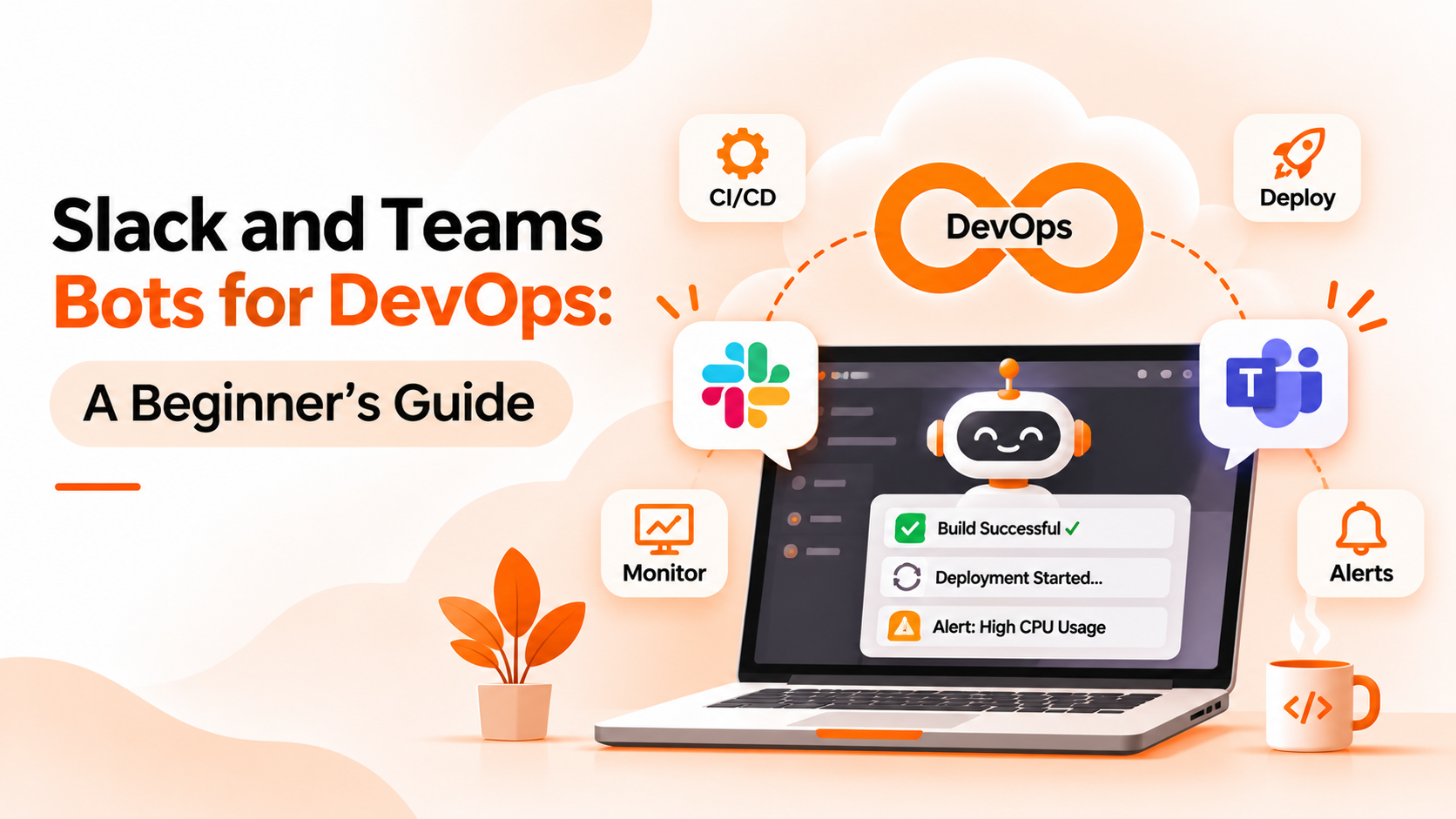
Most engineering teams already spend their day in Slack or Microsoft Teams. It is where questions get asked, decisions get made, and, increasingly, where operational information shows up. That is the basic idea behind ChatOps Slack Teams setups: bring the work to the place people already are.
This guide explains what bots do in those tools, why people misunderstand them, and how to start. The final section separates general practice from what Bigbell provides.
In general, a bot in a chat tool is a program that takes part in a conversation. It does one or both of two things. It can send messages on its own, such as an alert saying a server is down. Or it can respond to people, answering a question or running a task when someone asks.
The first kind, notification bots, is simpler and far more common. A system detects an event and posts it to a channel. The second kind, interactive bots, needs more work, since it must understand requests, check who is asking, and connect safely to the systems it controls.
Most chat tools support both through their own mechanisms, such as incoming webhooks for posting messages and bot applications for interactive behavior. The details differ between Slack and Microsoft Teams, so the setup steps are not interchangeable.
The biggest confusion is treating all bots as the same. Posting an alert into a channel and letting someone run a command from that channel are very different capabilities, with very different security needs. A product that sends alerts to Slack is not automatically a Slack bot that accepts commands.
Another misunderstanding is that a bot is always more useful with more features. In practice, noisy bots teach people to ignore them. A channel that receives every minor event quickly becomes background noise.
People also assume chat tools are a safe place for sensitive actions. Chat messages can be seen by many people, retained for a long time, and copied elsewhere. Secrets and personal data should not be pasted into them.
Finally, teams forget about ownership. A bot that nobody maintains stops working when a token expires or a webhook is revoked, and the silence looks like good news.
Start with notifications before commands. Decide which events deserve a message, and send them to channels where the right people will see them. A dedicated channel for urgent incidents keeps them from drowning in general discussion.
Keep alerts actionable, because a message people must decode will be skipped. Each message should say what happened, which resource is affected, and where to look next. If people need to open three other tools to understand it, the message is incomplete.
Add recovery messages as well as failure messages. Knowing that something is fixed saves people from checking manually.
Test your connections regularly. Webhooks and tokens expire or get revoked, and silence looks like good news. A test message after any change confirms that the path still works.
Be cautious with interactive commands. If you allow actions from chat, make sure each one respects the same permissions as everywhere else, and prefer starting with read only questions. For a broader comparison of chat and console workflows, read what is ChatOps.
Two separate Bigbell capabilities are relevant here, and it helps to keep them apart.
The first is alert delivery. Bigbell can send monitoring alerts to Slack, Microsoft Teams, and Google Chat, along with email, WhatsApp, SMS, and phone calls. For Slack, you connect an incoming webhook or a bot token with a channel. For Microsoft Teams, you connect a workflow webhook created in the target channel. For Google Chat, you connect an incoming webhook. After you save a channel, Bigbell asks you to send a test notification, and the channel stays inactive until the provider accepts it.
Routing can be set for the whole organization, a project, a project and plugin, or a single application, so alerts reach the right people. Bigbell also sends recovery notifications, can wait for a problem to persist before alerting, retries temporary delivery failures, and records the delivery status. Webhook addresses must use HTTPS, and stored channel settings are encrypted.
The second is commands from chat. Bigbell integrates with Slack and Microsoft Teams so that your team can send commands and questions straight from the channel, without logging in to Bigbell. Once your channel is verified, you can ask things like "Is CPU utilization high?", "Is there any threshold breach?", or "Do we have any server without backup?" and get the answer back in the same Slack or Teams conversation. The answers come from the same data that powers Bigbell's AI chat, which answers questions about your cloud, monitoring, and billing data.
Because commands only work from a verified channel, the people who can query your infrastructure are the people you have added to that channel. Keep the channel limited to those who already have access to the systems behind it.
Book a demo to see alert routing and the AI chat on your own environment.
What is a ChatOps bot? A program in a chat tool that posts messages, answers questions, or runs tasks.
Does Bigbell send alerts to Slack and Teams? Yes. It supports Slack, Microsoft Teams, and Google Chat, among other channels.
Can I ask Bigbell questions from Slack or Teams? Yes. Once your channel is verified, you can send commands from Slack or Microsoft Teams and get the information back in the channel.
Do I need to log in to Bigbell to use commands in Slack or Teams? No. After the channel is verified, users can send commands and receive answers directly in Slack or Teams.
What kind of commands can I send? Operational questions such as whether CPU utilization is high, whether there is any threshold breach, or whether any server is without a backup.
Who can send commands from a channel? Anyone in the verified channel, so keep channel membership limited to people who should see that information.
How do I connect Slack? With an incoming webhook, or a bot token plus a channel identifier.
How do I connect Microsoft Teams? Use a workflow webhook created in the target channel.
How do I know a channel works? Send a test notification. Bigbell keeps the channel inactive until the provider accepts one.
Does Bigbell send recovery messages? Yes. Recovery notifications are sent when a problem clears.
Why use more than one channel? Different teams watch different tools, and a second channel can reach people who miss the first.
What is the difference between a webhook and a bot? A webhook posts messages into a channel. A bot application can also respond to people and take actions.
Can alerts go to several channels at once? Yes. Bigbell sends each incident to every configured destination independently, so one failing provider does not block the others.
What happens if a Slack or Teams message fails to send? Bigbell retries temporary failures with increasing delays and records the delivery status.
Is it safe to send alerts to a shared channel? Avoid including secrets in messages, and limit the channel to people who need the information.
Which other channels does Bigbell support? Email, Google Chat, WhatsApp, SMS, and phone calls.
Can I choose who receives which alerts? Yes. Routes can be set for the organization, a project, a project and plugin, or a single application.
Should I start with notifications or commands? Start with notifications. They are simpler and carry less risk than commands.
Does Bigbell store webhook details securely? Channel secrets are stored encrypted, and webhook addresses must use HTTPS.
What if a webhook is revoked? Delivery will fail and be recorded. Reconnect the channel and send a test notification.
Do alert messages need to include a link? A link to the relevant dashboard helps responders go straight to the details.
Can a bot replace on call tools? Not by itself. A chat message is easy to miss, so urgent incidents may also need calls or SMS.