Published March 25, 2026
A single backup schedule is easy to reason about. Ten, then fifty, is where trouble starts: runs pile up at the same hour, retention settings stop matching the frequency, and an edit made for one server quietly changes what the team can recover.
Part 1 covered what a cron expression is. This part looks at designing automatic backup scheduling that still makes sense as the number of servers grows.
A good schedule is three settings that agree with each other: when the backup runs, how often it repeats, and how long copies are kept.
The most common design error is a retention period that is too short for the frequency. Suppose a weekly backup is kept for seven days. By the time the next one runs, the previous copy has reached the end of its retention, so you may hold only the newest copy at any moment. A daily schedule with a seven-day retention, on the other hand, gives you roughly a week of restore points. As a rule of thumb, retention should be several times longer than the interval if you want more than one copy to choose from.
Run time is the second setting. Pick a quiet window for each server, away from peak traffic and away from deployments. The third is ownership: someone should know why each schedule has the values it does.
Teams usually treat schedules as independent settings, when they interact. Frequency, retention, and run time each seem simple alone, and combined they decide your recovery window.
A common assumption is that every server can use the same expression. That is tidy, but it means every backup starts at once, which can create a burst of activity at exactly 02:00. It also means that when something goes wrong at that hour, it goes wrong everywhere.
Another is that editing a schedule only affects the future. Changing frequency does change future runs, but copies made under the old frequency still exist, and depending on how cleanup works, they may not be tidied by the new schedule. That is worth checking in your own tooling rather than assuming.
Calendar behavior also surprises people. Monthly cron schedules aimed at the 29th, 30th, or 31st do not run in shorter months. A schedule that looks monthly can skip a month without any error.
Finally, deleting a schedule is easier than it should be. Removing the last schedule for a server stops its future backups, and unless someone checks coverage afterward, the server simply drops out of protection.
Stagger start times. Spread schedules across a window rather than putting everything on the hour. Small offsets of fifteen or thirty minutes are enough to avoid simultaneous load.
Do retention arithmetic for each tier. Multiply how many copies you want by the interval to get a minimum retention. If you want four weekly copies, retention should be at least four weeks, and a little more leaves margin.
Use dates that exist in every month. For monthly backups, prefer the first or the twenty-eighth over the thirty-first.
Review after every change. When you edit a frequency or retention value, look at the server's existing backups afterward and confirm the result matches what you intended. When you delete a schedule, confirm that the server is covered by another one or that you meant to remove it.
Finally, check results, not settings. A schedule describes what should happen. The age of the newest backup tells you what did. If you have not compared the two lately, our guide to checking whether servers are backed up is a good place to begin.
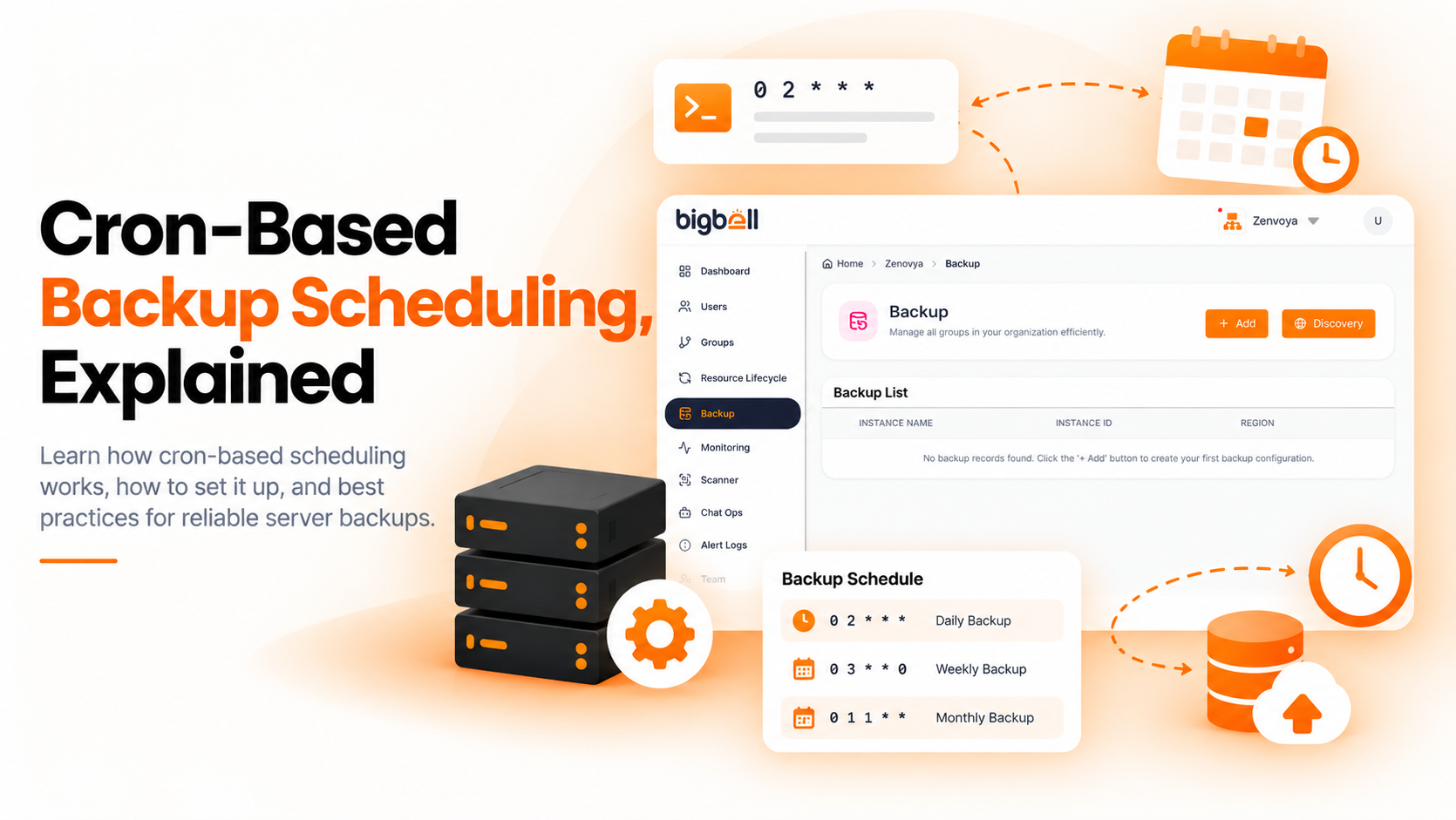
Bigbell's backup management feature lets you create a schedule per server for AWS, Azure, and Google Cloud, with a daily, weekly, or monthly frequency, a retention period in days, and cron-based timing. Because each server has its own schedule, you can set different run times and avoid putting everything on one hour.
Existing schedules can be edited or deleted, so adjusting a plan does not mean rebuilding it. On each run, Bigbell creates an image on AWS or a snapshot on Azure and Google Cloud, and removes the copies it created that are past retention. In the current AWS implementation, that cleanup considers copies for the same server created at the same frequency. After you change a frequency, it is worth reviewing older copies yourself.
Backup discovery supports that review. For each server it shows the number of backups and the days since the latest one, and servers with none show "None." Bigbell does not test restores, and its backup management covers AWS, Azure, and Google Cloud only.
Book a demo to see schedules and backup discovery on your own servers.
How do I avoid every backup starting at once? Give servers different start times within a quiet window.
How long should retention be? Longer than the backup interval, and long enough for you to notice a problem and still recover.
What happens if a weekly backup has seven-day retention? You may hold only the latest copy, since each older one expires as the next runs.
Why would a monthly schedule skip a month? If it targets a day such as the 31st, shorter months do not have that date.
Can I edit a Bigbell backup schedule? Yes. Schedules can be edited or deleted.
Does Bigbell delete old backups? It removes the backups it created once they pass retention.
Does changing frequency clean up old copies? Not necessarily. On AWS, cleanup considers copies created at the same frequency, so review older copies after a change.
Does Bigbell test restores? No. Restore testing is a separate task.
Can I set different run times per server? Yes. Each server has its own schedule.
How far apart should staggered start times be? Fifteen to thirty minutes is usually enough to avoid several backups starting together.
Which day is safest for monthly backups? The first or the twenty-eighth, since every month has them.
Should every server share the same retention? Not necessarily. Set it by how much each system matters and how long a problem might go unnoticed.
How often should I review schedules? After any change, and periodically as servers are added or retired.
What happens when I delete a schedule? Future runs stop for that server. Check coverage afterward so the server is not left unprotected by accident.
Is it a problem if all schedules use the same time? It can be, because every backup starts together. Staggering them spreads the activity.
How do I check that a changed schedule works? After the next run, look at the server's latest backup age. In Bigbell, backup discovery shows it.
Which cloud providers can I schedule backups for in Bigbell? AWS, Azure, and Google Cloud.
Should I document why each schedule has its values? Yes. A short note on the reason behind frequency and retention helps whoever reviews it later.