Published March 25, 2024
Every EC2 instance has a life: someone launches it, it runs, it may be resized, stopped, started again, and eventually retired. Most teams manage the first and last steps carefully and leave everything in between to habit. That is where an EC2 instance scheduler helps, by turning routine start and stop decisions into a plan instead of a reminder.
This guide explains what scheduling means, why teams get it wrong, and how to introduce it safely. The first sections are general AWS practice. The last section covers only what Bigbell provides.
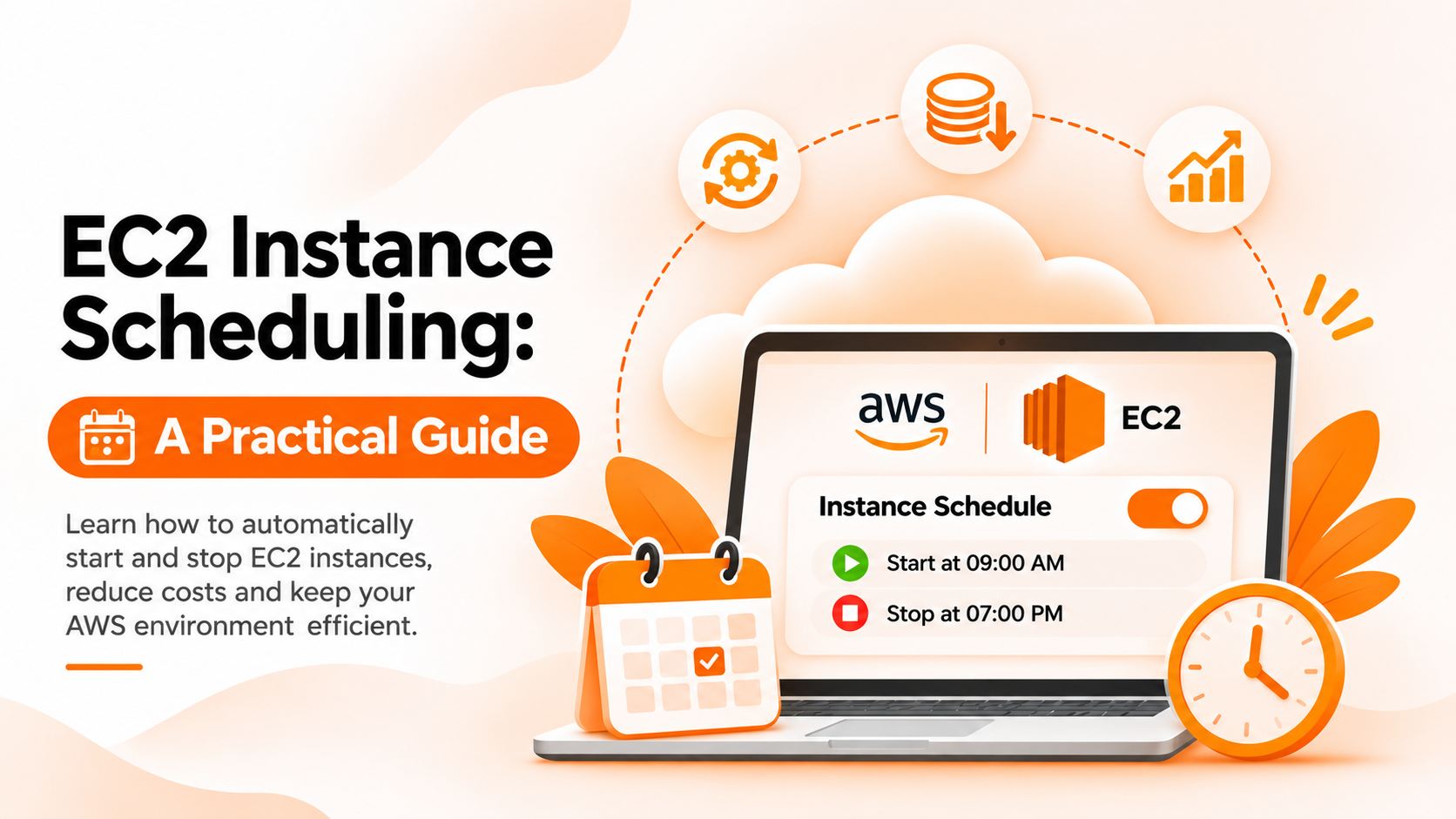
Scheduling means performing an action on an instance at a set time, without a person doing it. The most common actions are starting and stopping. A development server might start at 9 in the morning and stop at 8 in the evening on weekdays. Another action is changing the instance type, which is useful when a server needs more power for a short period or less power overall.
These actions are usually described with cron expressions, a compact way of writing recurring times. An expression has five parts: minute, hour, day of month, month, and day of week. For example, 30 8 * * 1-5 means 8:30 on weekdays.
Scheduling sits inside a wider lifecycle. A server that is created, used, paused, resized, and removed on purpose costs less effort and less money than one that was launched once and forgotten. Scheduling covers the middle part of that story.
The first misunderstanding is that stopping an instance removes its cost. A stopped EC2 instance generally no longer incurs compute charges, but its storage volumes continue to be billed, and some attached resources, such as allocated addresses, may also carry charges.
The second is assuming that a stopped instance comes back exactly as it was. Data on attached volumes is kept, but anything held in memory is lost. Public IP addresses may change after a restart unless a fixed address is used, which can break connections from other systems. Some instances use temporary storage that does not survive a stop, so check how your instances are built.
The third is treating all servers alike. Production servers usually need to run continuously, while test servers rarely do. Scheduling the wrong server causes an outage, and scheduling none leaves savings on the table.
The fourth is forgetting about time zones. A schedule written in one time zone and read in another can start servers hours late or stop them while people are working.
The fifth is believing that resizing is instant. Changing an EC2 instance type requires the instance to be stopped first, so it involves a short outage.
Begin with a list. Identify non production instances, who owns each, and when they are really used. Ask owners rather than guessing.
Choose simple windows first, such as weekday working hours. Confirm the time zone of the schedule and write it down with the schedule itself.
Check dependencies before stopping anything. Look for services that call the instance, jobs that run overnight, and monitoring that will raise alerts when it goes quiet. Decide how those alerts should behave during planned stops.
Plan the restart. Make sure applications start by themselves after boot, and that nothing requires a manual step. Test by stopping and starting one server before applying the plan widely.
For resizing, schedule it for quiet periods, expect downtime, and confirm that the new type suits the workload. Record the old type so you can return to it.
Finally, review regularly. Teams change their hours, projects end, and servers move to production. A schedule that was right six months ago may now be wrong.
Bigbell supports scheduling through its Resource Lifecycle Management features. For EC2, you can create schedules that start, stop, or change the instance type. You choose the instance, the action, and a cron expression. Bigbell displays the expression in plain English, which helps you catch mistakes before they run. A server can have more than one schedule, so a morning start and an evening stop are two separate entries. You can edit or delete them later.
For a resize, Bigbell stops the instance, waits for it to stop, changes the type to the one you entered, and starts it again. That means the server is unavailable during the change, and it will be running afterwards even if it was stopped before. The same schedules are available for Azure and Google Cloud virtual machines. Bigbell's AI chat can also create, update, and delete schedules, and it asks for details such as the time and region if you leave them out.
Know the limits. Schedules are read in Indian Standard Time, so convert your working hours first. Bigbell does not decide which instances should be scheduled, does not offer tags based rules or holiday calendars, and does not check whether anything depends on a server. We have not verified notifications when a scheduled action runs or fails, so confirm results in your cloud console. Bigbell also does not state how much a schedule saves.
Book a demo to see how schedules are set up for your instances.
What is an EC2 instance scheduler? A tool or process that starts, stops, or changes EC2 instances at set times.
What does a cron expression look like? Five fields for minute, hour, day of month, month, and day of week, such as 0 9 * * 1-5.
Does stopping an instance delete my data? No. Data on attached volumes stays, but data in memory is lost.
Will my public IP stay the same? Not necessarily. It may change after a restart unless you use a fixed address.
Can I schedule an instance type change in Bigbell? Yes. Bigbell stops the instance, changes the type, and starts it again.
Is there downtime during a resize? Yes. The instance is stopped while the type changes.
Which time zone do Bigbell schedules use? Indian Standard Time.
Can I have both a start and a stop schedule? Yes. Create one schedule for each action.
Does Bigbell send an alert when a schedule runs? We have not verified this, so check the instance state in your cloud console.
Can Bigbell schedule instances in other clouds? Yes. Start, stop, and resize schedules are available for Azure and Google Cloud virtual machines.
Can the AI chat manage schedules? Yes. It can create, update, and delete them, and it asks when details are missing.
Should I schedule a production server? Usually not. Production systems typically need to run continuously.
How do I test a schedule safely? Try it on one low risk server first and confirm it starts and works correctly afterwards.
What happens to alerts while an instance is stopped? Monitoring may report it as down, so decide in advance how planned stops should be treated.
How often should schedules be reviewed? At least every few months, and whenever a team changes its working hours.
Why check temporary storage? Some instance types use storage that does not survive a stop, so data placed there can be lost.