Published April 5, 2025
Most AWS accounts start with good intentions. CloudWatch is switched on, a few alarms are created, and everyone moves on. A year later, nobody can say which alarms still apply, an instance in a second region was never covered, and the one alert that fired last month went to an engineer who has since left the team.
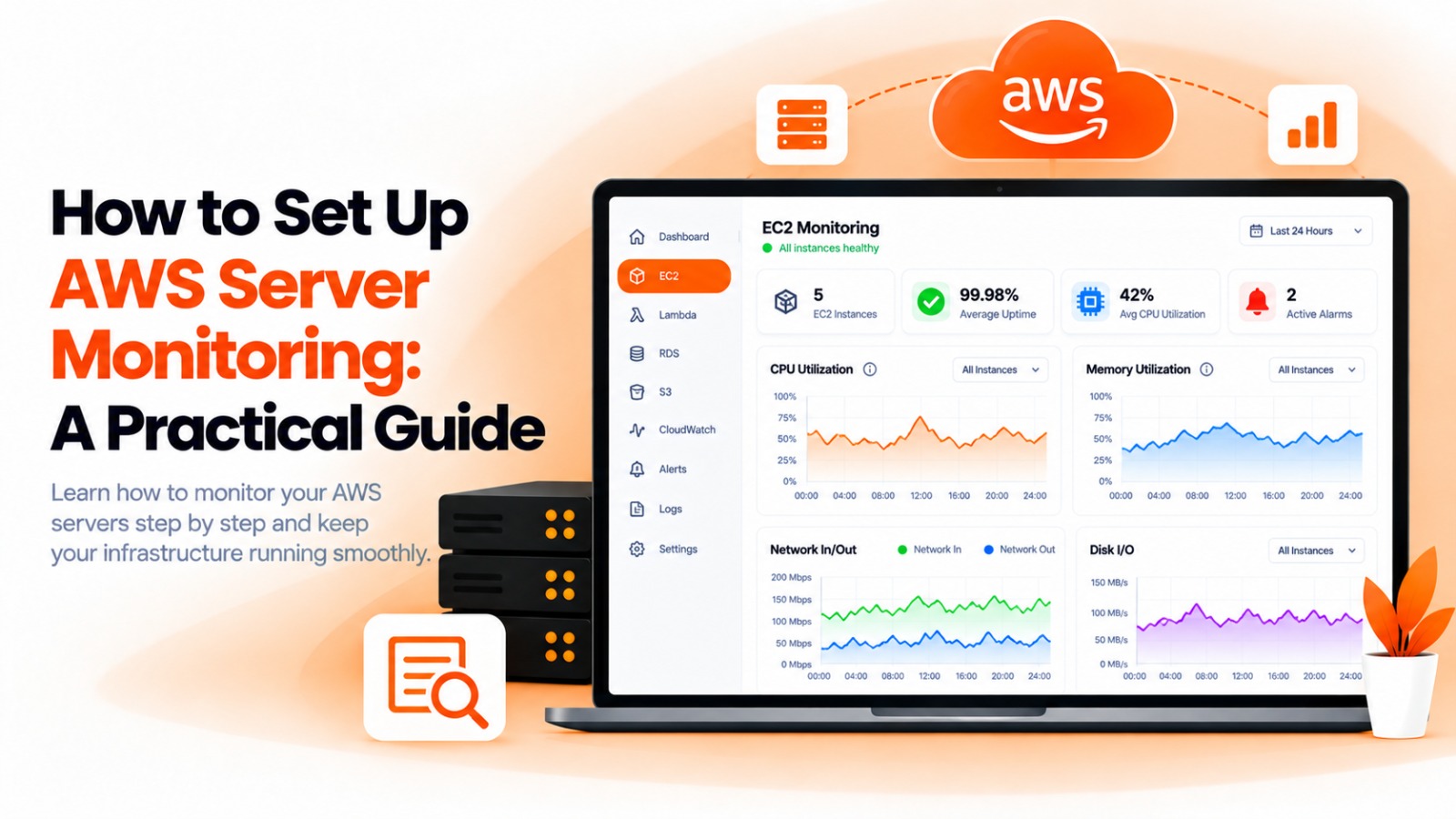
The first guide in this series covered the setup. This refresh goes through the details that tend to go wrong afterward, so your aws server monitoring stays accurate as the account grows.
AWS makes it easy to launch resources and just as easy to forget them. Instances get created for a launch, a test, or a one-off job, and the account slowly fills with machines that nobody has looked at in months. Some of those are important. Others are costing money for no reason. You can't tell which is which without regular data, and a quarterly audit by hand rarely happens.
Monitoring also closes the gap between what AWS reports and what your team notices. CloudWatch collects the numbers, but a number nobody sees doesn't help. What matters is that the right person is told, at the right time, about the right resource, and that the same setup keeps working as the account changes.
1. List what you actually run. Write down your EC2 instances, databases, Lambda functions, and load balancers, and note which region each one lives in. Resources in a second region are the most commonly missed, so check each region your team has ever used, including ones set up for a single experiment.
2. Create credentials with limited access. BigBell connects to AWS using an access key and secret key, plus an optional session token. Give those credentials read-only access to the services you want monitored, and nothing more. If the keys are ever exposed, the damage is limited.
3. Check the region. Monitoring is tied to a region, so an instance in one region won't appear if you've pointed at another. Confirm the region for each resource before assuming something is covered.
4. Understand the data you get. EC2 metrics come from CloudWatch as five-minute averages. That's fine for spotting trends and sustained load, but a spike lasting a minute will be smoothed out. Set your expectations, and your thresholds, to match. If you need to catch very short problems, an external check on the public URL is the better tool.
5. Tune the thresholds. EC2 monitoring starts with a CPU warning at 75% and critical at 90%, and it also watches for failed instance and system status checks. Treat those as a starting point. A database host and a batch worker rarely behave the same way, so adjust each to its own normal range.
6. Add a delay and choose where alerts go. A short delay stops brief spikes from becoming alerts. Route each project's alerts to the team that owns it, through a channel that team actually reads. Send production to something more insistent than a shared inbox.
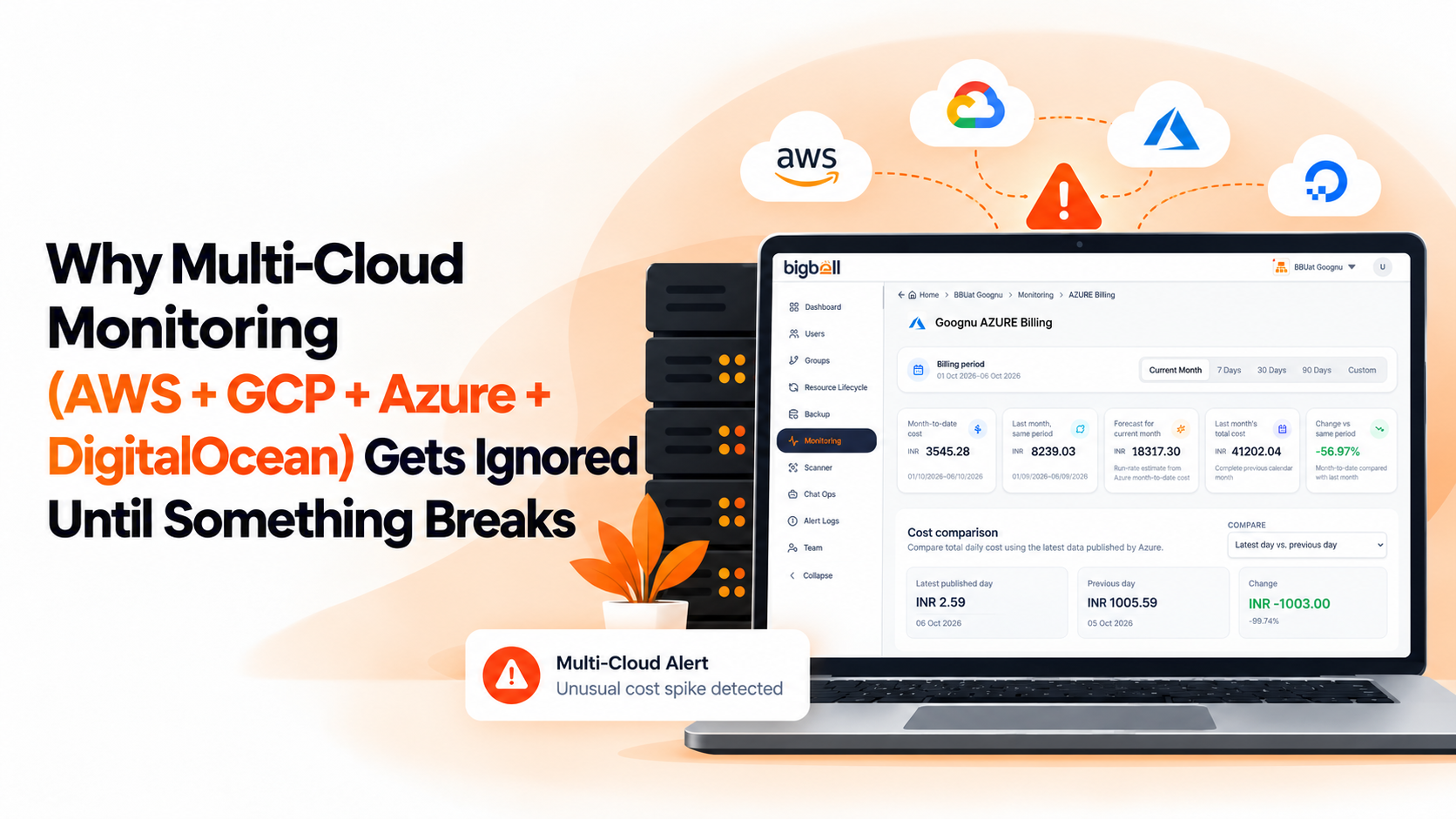
7. Add billing. Cost problems often show up before performance problems do. Monitoring AWS spend alongside your servers means an oversized or forgotten instance gets noticed in days, not on the next invoice.
8. Review after a month. Check which alerts fired, which were useful, and which resources have since been retired.
The biggest mistake is monitoring only what you remember. Instances launched for a test, in another region, or by another team tend to be missing from any list built from memory. Build the list from the account itself.
Another is leaving retired instances in monitoring. BigBell treats an EC2 instance that isn't in the running state as unhealthy, so a server you've deliberately stopped will be flagged until you remove it from monitoring. Take stopped or scheduled instances out of monitoring, or accept the flags as part of the design.
A third is trusting five-minute averages to catch everything, then being surprised when a short outage never shows up in the graphs. They won't. Pair EC2 metrics with an external URL check so you know whether customers can actually reach the service.
Finally, many teams grant broad permissions because it's quicker. A monitoring tool needs to read, not change, your infrastructure, and narrow permissions are easier to review and to rotate when someone leaves.
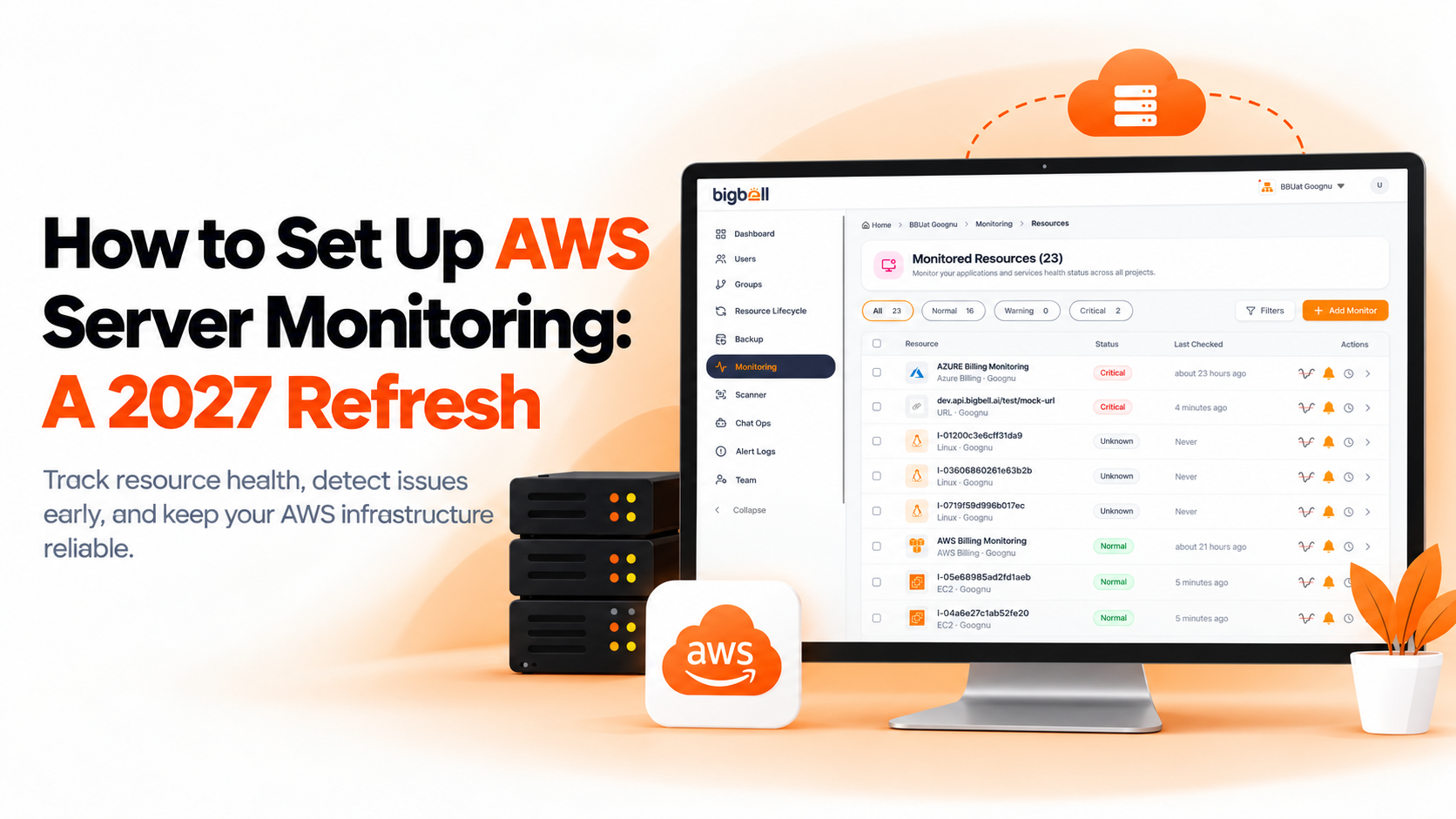
BigBell monitors EC2, RDS, Lambda, and network load balancers using the credentials you provide, and tracks AWS billing alongside them. For EC2, it reports instance state, CPU utilization, status checks, and network and disk activity.
Thresholds are set per resource with separate warning and critical values, and a configurable delay filters brief spikes. Alerts can be routed at the organization, project, or application level to email, Slack, Microsoft Teams, Google Chat, WhatsApp, SMS, or a phone call, and a recovery notification is sent when a resource returns to normal. URL and SSL monitoring cover the public side. See the BigBell monitoring page for more.
What credentials does BigBell need for AWS? An access key and secret key, with an optional session token. Give them read-only access to the services you want monitored.
Which AWS services does BigBell monitor? EC2, RDS, Lambda, and network load balancers, plus AWS billing.
Why isn't my instance showing up? Check the region first. Monitoring is region-specific, so an instance in a different region won't appear until you point at that region.
Why is a stopped instance flagged? BigBell treats an instance that isn't running as unhealthy. Remove stopped instances from monitoring if the stop is intentional.
How often is EC2 data updated? EC2 metrics are read from CloudWatch as five-minute averages, so very short spikes are smoothed out.
Do I need CloudWatch alarms as well? BigBell reads CloudWatch metrics and handles thresholds and alerting itself, so you don't need to recreate those alarms for it. Keep any CloudWatch alarms you rely on for other purposes.
Should I monitor billing too? Yes. Billing data helps you catch forgotten or oversized resources early, and BigBell tracks it alongside your servers.
How do I stop alert noise? Set thresholds per resource, add a delay, and route alerts by project so each team sees only what it owns.
Does monitoring change anything in my AWS account? No. Monitoring reads instance details and metrics, which is why read-only credentials are enough.
What should I do first if a CPU alert fires? Look at what changed: a deployment, a job, or a traffic increase. Then check the load balancer and database metrics, since a problem in either can show up as high CPU on the instance.
How many instances should I monitor? All the ones that matter, and ideally all of them. Small and forgotten instances are often where problems begin, and they cost little to include.
Should test and staging instances be monitored? Yes, but with looser thresholds and a quieter alert destination than production. They often become production dependencies without anyone deciding it.
Who should own AWS alerts? The team responsible for each resource. A shared inbox for everything usually means nobody acts.
Related reading: multi-cloud server monitoring, Part 2, GCP server monitoring checklist, Part 2, and CPU utilization monitoring, 2027 refresh.
Want to see this on your own AWS account? Book a demo.