Published Feb. 5, 2025
A CPU alert at 95% looks like a clear signal. In practice, it often isn't. The nightly backup kicks off, the alert fires, someone logs in, and by then the server is back to 20%. After a few rounds of this, people stop reacting, and the next 95% alert, the one caused by a runaway process, gets the same shrug as the rest.
Part 1 of this series covered how to get CPU data flowing. This refresh is about the next step: making your cpu monitoring accurate enough that an alert is worth acting on.
CPU is usually where load shows up first. A traffic surge, a slow query, or a stuck process all push the processor up before anything else visibly breaks, so CPU data is often your earliest clue that something is wrong.
It's also the metric that feeds capacity decisions. If a server sits at 15% for months, it may be oversized. If it regularly climbs above 80% at the same hour every day, it's heading toward trouble. Both conclusions depend on having clean history and sensible alert limits, which is where most setups fall short. A setup that cries wolf produces neither: the data gets ignored, and the capacity questions get answered by guesswork.
1. Decide how each server reports. Linux servers report through an installed agent, while AWS EC2 instances are read from CloudWatch. This matters because CloudWatch CPU comes as five-minute averages, so a 30-second spike will be smoothed out. Knowing the granularity of each source stops you from setting limits the data can't support.
2. Watch a normal week before setting limits. Note the typical level and the peaks, and write down what causes them. A database that spikes every night at 2 a.m. for a backup is behaving normally, and your thresholds should know that. If you can, check the same server across a weekend too, since traffic patterns often differ from weekdays.
3. Set warning and critical levels per server. Use the baseline you just observed. A warning level gives you time to look before users notice, while a critical level means act now. Servers with different jobs, such as a web server and a batch worker, need different numbers. If you're unsure, start a little loose and tighten once you've seen a few weeks of real behavior.
4. Add a delay before alerts fire. Require the CPU to stay high for a short period before anyone is notified. A brief spike resolves itself, and a genuine problem will still be there when the delay ends.
5. Send alerts to whoever owns the server. Production and test servers shouldn't share a destination. Route each to the team that can actually fix it, through a channel they check.
6. Turn on recovery notifications. Knowing when CPU returns to normal saves people from re-checking a dashboard to confirm a fix.
7. Review after the first real alert. The first alert in a new setup usually shows whether your limits are too tight or too loose. Adjust then, rather than waiting for a quarterly review. Ask whether the alert told you something useful, and whether the right person saw it quickly.
The most frequent mistake is copying one threshold across every server. A limit that suits a web server will fire constantly on a machine whose job is to run heavy jobs, and it will stay silent on a server that should never be busy.
Another is alerting on every spike. Without a delay, scheduled jobs and brief bursts generate noise, and noisy alerts get ignored. A third is treating setup as finished. Servers change roles, traffic grows, and thresholds that were right last year drift out of date.
Finally, many teams watch CPU in isolation. A high reading means more when you can see memory and disk beside it, because the three often move together when something goes wrong.
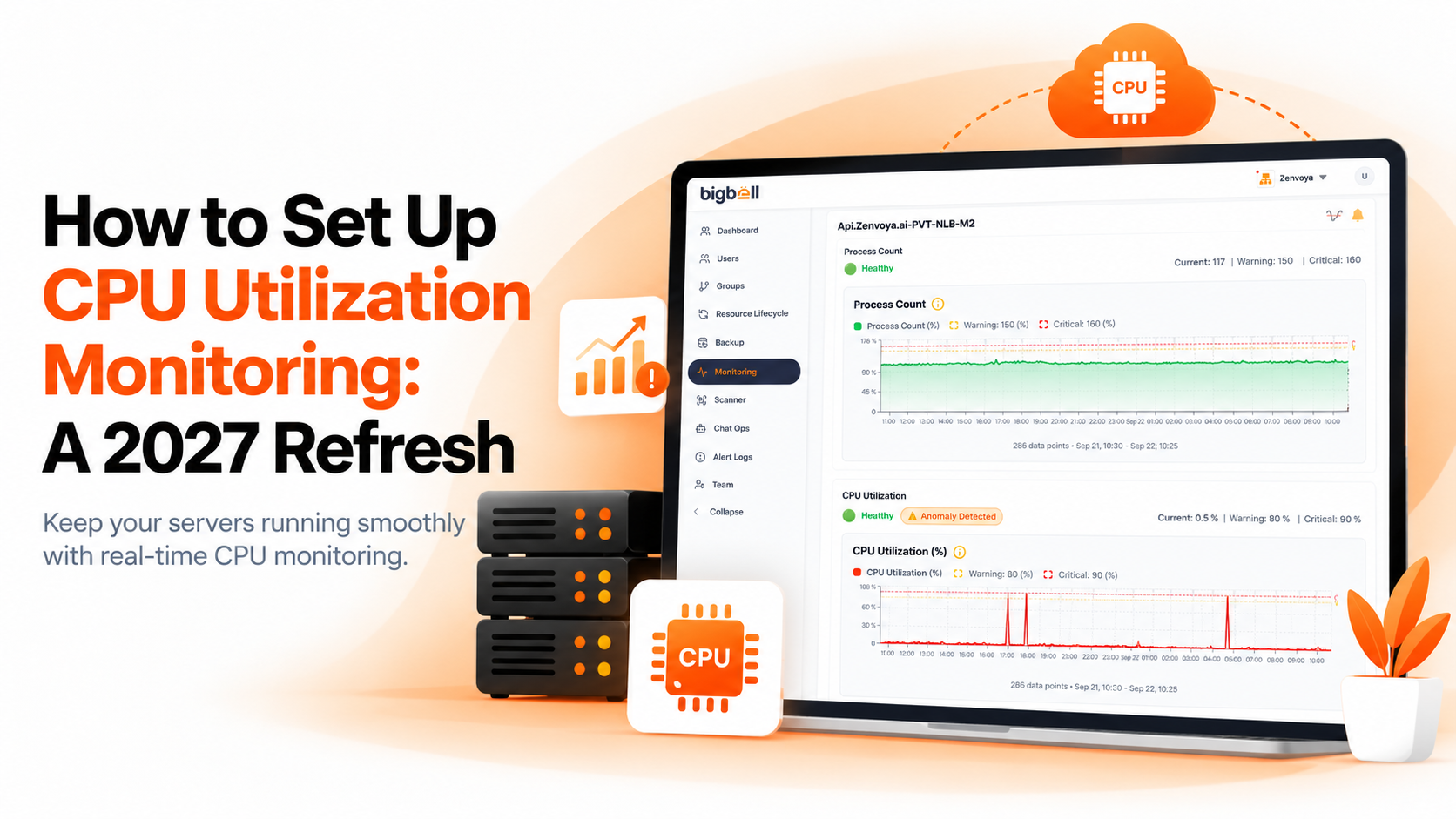
BigBell covers the parts of this setup that map to its actual features. For Linux servers, an installed agent reports CPU utilization along with the number of running processes, and it reports memory and disk usage alongside it, so you can see all three in one place. For AWS, BigBell reads EC2 CPU utilization from CloudWatch.
Thresholds are set per resource with separate warning and critical values, and a configurable delay filters out brief spikes. Alerts can be routed at the organization, project, or application level and delivered by email, Slack, Microsoft Teams, Google Chat, WhatsApp, SMS, or a phone call. A recovery notification is sent when a resource returns to normal. You can read more on the BigBell monitoring page.
Memory and disk deserve the same care as CPU. The follow-ups on memory utilization monitoring and disk space monitoring pick up where this guide stops. If your servers run on AWS, the AWS server monitoring guide covers the cloud side in more detail.
What CPU usage is too high? There's no universal number. A server that normally idles at 10% and jumps to 70% deserves attention, while a batch server that routinely runs at 80% may be fine. Base limits on what's normal for each server.
Why is my CPU alert firing and then clearing on its own? Usually because of short bursts, such as scheduled jobs or brief traffic spikes. A delay before the alert fires means only sustained high usage triggers a notification.
How often does BigBell check CPU on a Linux server? It depends on how often the installed agent sends its readings. EC2 data comes from CloudWatch, which provides five-minute averages.
Is CPU monitoring enough on its own? No. High CPU can be a symptom of a memory or disk problem, so looking at all three together gives you a clearer picture of what's actually wrong.
Should every server have the same threshold? No. Servers with different roles behave differently. Set limits from each server's own baseline rather than one shared default.
How long should I observe a server before setting thresholds? At least a full week, so you capture both weekday and weekend patterns. A longer window is better if the workload has monthly cycles.
Does a delay make real problems get caught later? Only by the length of the delay, which is usually short. In exchange, you avoid alerts for spikes that would have resolved themselves.
Can I monitor CPU on servers that aren't on AWS? Yes. Linux servers report through BigBell's installed agent, so they don't need to be on a particular cloud. AWS EC2 instances are read from CloudWatch.
What should I do when a CPU alert fires? Check what changed first: a deployment, a scheduled job, or a traffic increase. Then look at memory and disk on the same server, since a problem in either can push CPU up.
Who should receive CPU alerts? The person or team that owns the server and can act on the alert. Routing alerts to a shared inbox for everyone tends to mean nobody responds.
How do I know when a problem is fixed? Recovery notifications tell you when CPU returns to normal, so you don't need to keep checking manually.
Want to see how this looks on your own servers? Book a demo and the BigBell team will walk you through it.