Published March 5, 2025
A full disk rarely announces itself politely. Logs stop writing, a database refuses new data, deployments fail halfway, and the error messages point everywhere except at the real cause. By the time someone runs a disk check, the damage is done, and the fix, clearing space under pressure, is the kind that creates new mistakes.
Part 1 of this checklist covered the essentials. This second part goes deeper on what happens around the measurement, because disk monitoring that only reports a number still leaves gaps: volumes nobody covered, limits that fire too late, and alerts that reach nobody in particular.
Confirm which volumes are monitored. Monitoring "the disk" can quietly mean only one disk. A server may have a root volume, a data volume, and a backup volume, and the one that fills up is rarely the one you checked. This is especially easy to miss after a server is rebuilt or a new volume is attached. List every volume that holds data you care about and confirm each is covered.
Watch percentage and absolute free space. Percentages mislead on large volumes. Ten percent free on a small disk is a few gigabytes, while ten percent on a very large one may be plenty. Looking at both tells you how much room you really have, which is what decides how long you can wait. A rule that checks both catches the large disk that is slowly running out and the small one that is nearly full already.
Set the warning early enough to act. An alert at 95% leaves almost no time. If a task such as adding storage or clearing old files takes a day, the warning has to fire days before the critical level. Work backward from how long your fix takes, then place the thresholds there.
Track the growth rate. A disk at 70% that grows 1% a week is fine. One at 70% that grows 5% a day is an emergency in waiting. The current number alone can't tell these apart, so look at how usage moves over several weeks and note anything accelerating. A sudden change in the slope usually points to a specific cause, such as a new feature logging heavily or a backup job that stopped pruning old files.
Name an owner for what fills the disk. Disks usually fill because of logs, backups, temporary files, or database growth, and each has someone who can fix it. If nobody owns log rotation or backup retention, the alert fires and then nothing happens. Pairing each common cause with a person closes that gap.
Confirm recovery after cleanup. Clearing space is only half the job. Check that usage actually dropped and stays down, because a process that refills the disk within hours means the cause is still active. A recovery notification gives you a clear signal rather than a guess.
Test the alert path. An alert that never reaches a person is the same as no alert. Trigger a test, watch where it lands, and confirm someone sees it quickly. Do this again whenever teams or channels change. It takes a few minutes and is far cheaper than discovering a broken route during a real incident.
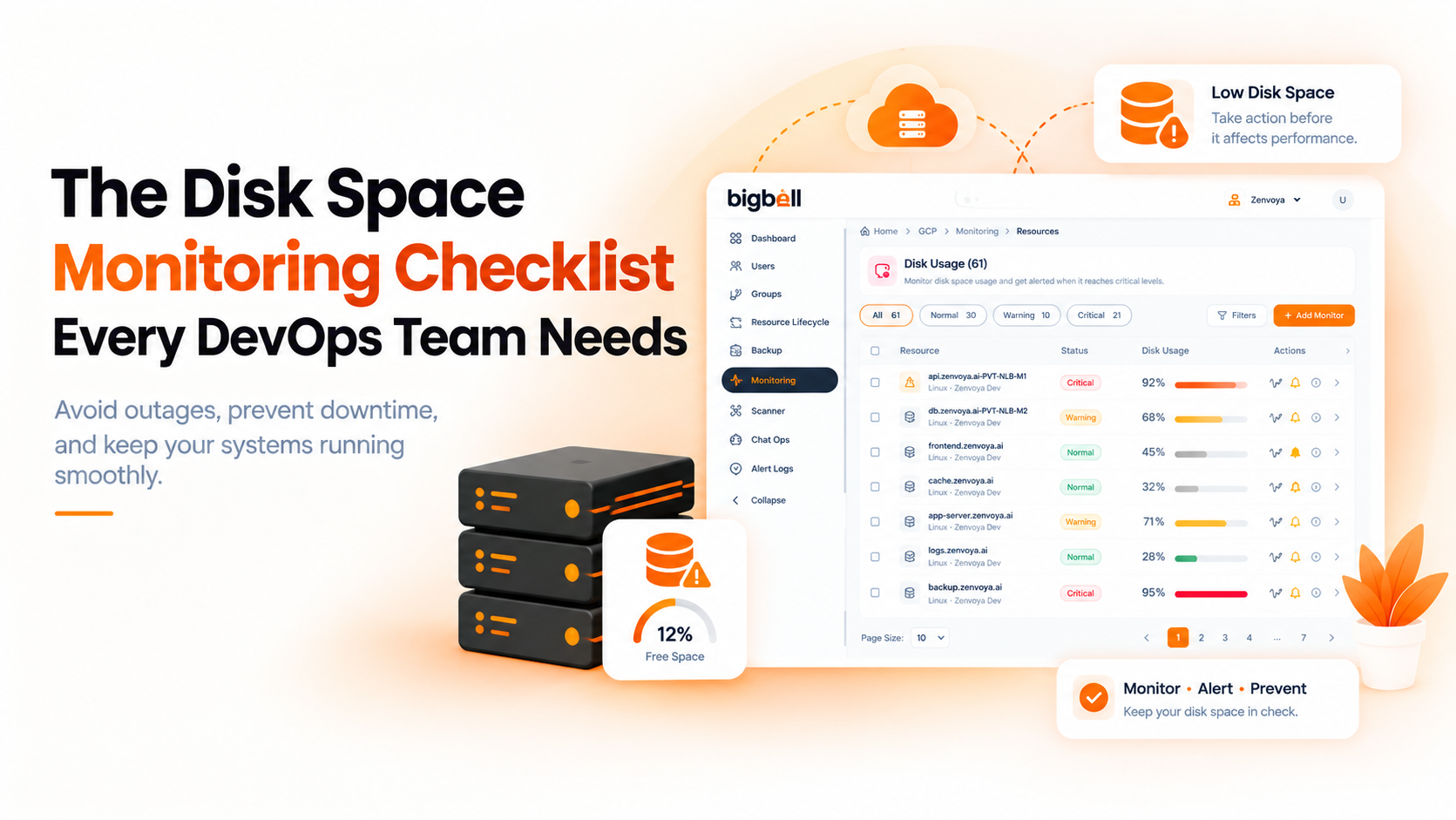
BigBell covers the parts of this checklist that match its actual features. For Linux servers, an installed agent reports disk used, free, and total, along with the percentage in use, and it reports CPU and memory alongside it. One point to check against item 1: the agent reports usage for the root filesystem, so if your data sits on a separate volume, confirm how that volume is covered rather than assuming it is.
Thresholds are set per resource with separate warning and critical values, so you can place the warning early. A configurable delay filters brief spikes, such as a temporary build file that is cleaned up minutes later. Alerts can be routed at the organization, project, or application level and delivered by email, Slack, Microsoft Teams, Google Chat, WhatsApp, SMS, or a phone call, and a recovery notification confirms when usage returns to normal.
BigBell doesn't tell you what is filling a disk or clean it up for you, so item 5 remains a job for your team. You can read more on the BigBell monitoring page.
Disk problems often show up alongside other symptoms. The CPU utilization monitoring refresh and the memory utilization checklist, Part 2 cover the other two core metrics, and the DevOps monitoring checklist shows how they fit into a wider setup.
At what percentage should a disk alert fire? There's no single answer. Work backward from how long it takes you to fix the problem. If adding space takes a day, the warning needs to fire well before the disk is nearly full.
Why monitor absolute free space as well as percentage? Because percentages hide scale. A small percentage free on a large volume can still be plenty, while the same percentage on a small volume can mean almost nothing.
Does BigBell monitor every disk on a server? The Linux agent reports usage for the root filesystem. If your data lives on a separate volume, check how that volume is covered.
What usually fills up a disk? Logs, backups, temporary files, and database growth are the most common causes. Knowing which applies to a server makes the alert much easier to act on.
How does a delay help with disk alerts? It means usage has to stay high for a short time before anyone is notified. Temporary files that appear and disappear within minutes won't trigger a notification.
How do I know a cleanup actually worked? A recovery notification tells you when disk usage returns to a healthy level. Check again after a few hours to make sure the cause isn't still filling the disk.
How often should I review disk growth? Monthly is a reasonable habit for most teams. Reviewing the trend even when nothing has alerted helps you plan storage before it becomes urgent.
Is it safe to delete old logs when an alert fires? Often, but check first. Some logs matter for debugging or audits, so confirm what's safe to remove, and fix the rotation or retention settings so the problem doesn't repeat.
Should dev and test servers get the same disk alerts as production? Usually not. Production deserves earlier warnings and a louder channel, while test servers can use looser limits and a quieter destination.
Who should receive disk alerts? The team that owns the server and the thing filling it, whether that's the application team or whoever manages backups. Sending alerts to a shared inbox usually means nobody acts.
Can I get help setting this up? Yes. You can contact the BigBell team with questions about your own setup.
Want to try it on your own servers? Try BigBell free.