Published June 5, 2025
A team installs a free monitoring tool on a quiet afternoon. A dashboard appears, a few graphs fill in, and everyone agrees it's good enough for now. Three months later nobody remembers the login, two new servers were never added, and the alert emails go to a shared inbox that nobody reads. The tool is still running. It just isn't watching anything that matters.
The first guide in this series covered how to get started. This refresh deals with what usually goes wrong afterward, so your free server monitoring setup stays useful instead of quietly decaying.
Free tools remove the first excuse for having no monitoring: cost. For a small team, a side project, or a new environment, that matters. You can see CPU, memory, and disk usage on day one without asking anyone for budget, and that alone puts you ahead of teams who find out about a full disk from a customer.
The catch is that free doesn't mean effortless. Someone still has to install the agent, choose limits, decide who gets alerts, and keep the server list current. When that work has no owner, the setup drifts. The tool becomes shelfware, and the team believes it's covered when it isn't.
That belief is the real risk. A missing monitor is obvious. A monitor that stopped working, or never covered the new server, looks exactly like a healthy system until something fails.
1. List every server and public URL. Before choosing anything, write down what you run: servers, their roles, and the web addresses customers use. This list is your coverage target, and you'll compare against it later.
2. Decide what each server needs. For most Linux servers, three numbers cover the basics: CPU, memory, and disk. Add a check on each public URL for availability and response time, and track SSL certificate expiry so a certificate never lapses quietly.
3. Install the agent or connect the account. Most tools either run a small agent on each server or read data from your cloud provider. Install it on one server first and confirm that data actually arrives before rolling it out further.
4. Set limits for each server. Use a warning level and a higher critical level. Take them from a week of normal behavior, not a guess. A database host and a small web server rarely share the same normal range.
5. Add a short delay. A brief spike shouldn't wake anyone. Requiring a problem to last for a few minutes cuts most false alarms.
6. Choose where alerts go. Send each alert to a named person or team through a channel they check. Production should reach someone quickly, not sit in a shared mailbox.
7. Test it on purpose. Fill a test disk or stop a test service and watch what happens. If the alert doesn't reach the right person, fix that before you rely on it.
8. Review monthly. Compare your server list with what the tool is watching, and look for anything that stopped reporting.
The most common mistake is setting it up once and never looking again. New servers get created, old ones are retired, and the monitored list slowly stops matching reality. A short monthly comparison fixes this.
The second is accepting default limits everywhere. Defaults are a starting point. They'll be too loose for a critical server and too noisy for a quiet one, and teams that live with noisy alerts soon learn to ignore them all.
The third is alerting nobody in particular. An alert that goes to a group address belongs to no one, so no one acts on it. Name an owner for each project.
The fourth is watching only the server. CPU, memory, and disk can all look fine while the website returns errors or an SSL certificate expires. External checks on public URLs cover what server metrics can't.
Finally, many teams forget to test. A monitoring setup that has never produced a real alert is an assumption, not a safety net.
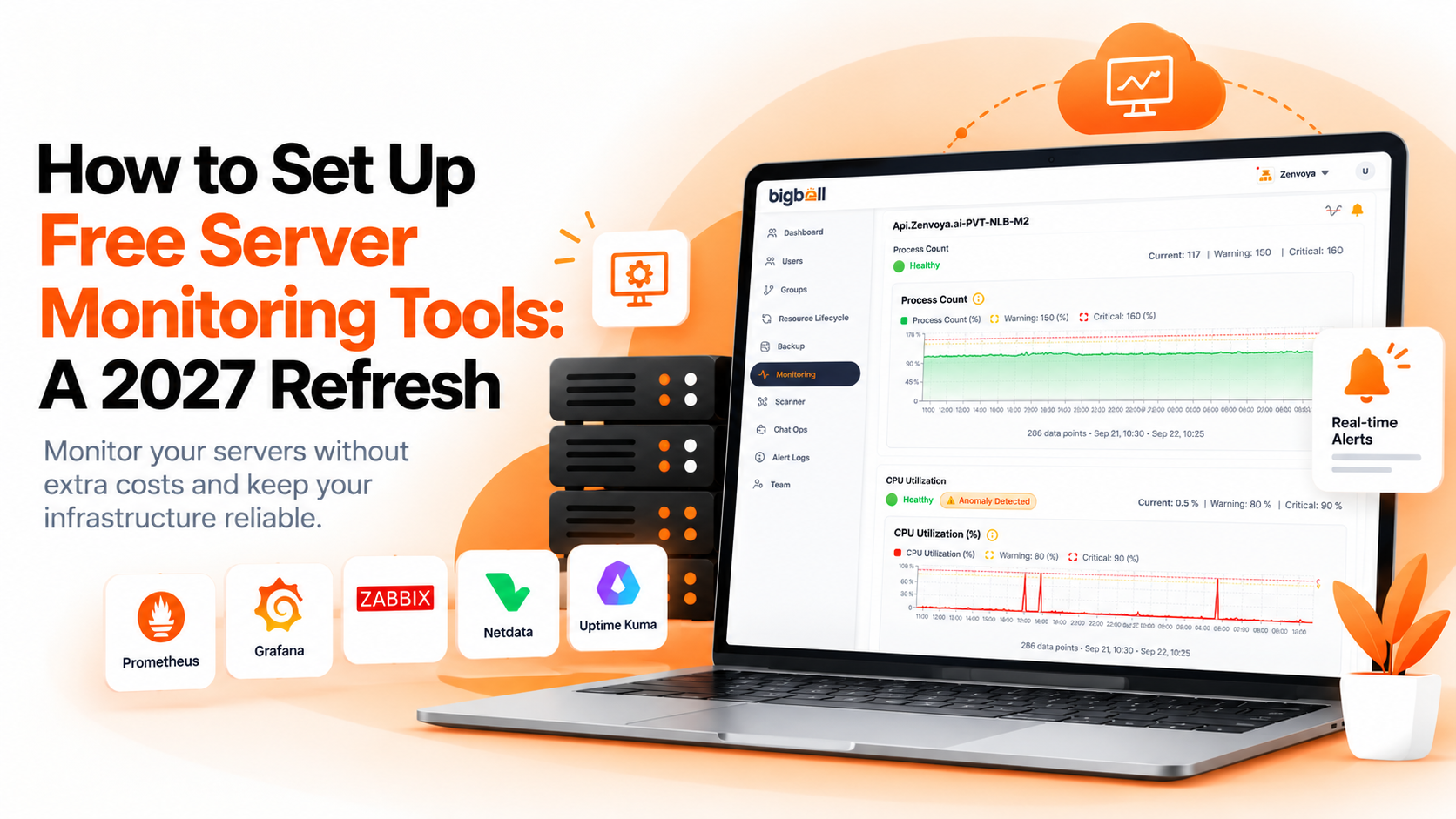
BigBell covers the routine parts of this checklist. For Linux servers, an installed agent reports CPU, memory, and disk usage. Disk monitoring covers the root filesystem. URL monitoring checks availability and response time from outside your infrastructure, and SSL certificate expiry is tracked as well. You can also connect AWS, Azure, or GCP accounts to monitor cloud resources.
Thresholds are set per resource with separate warning and critical values, and a configurable delay filters brief spikes. Resources are organized into projects, and alerts can be routed at the organization, project, or application level to email, Slack, Microsoft Teams, Google Chat, WhatsApp, SMS, or a phone call. A recovery notification is sent when a resource returns to normal. You can read more on the BigBell monitoring page.
One note on cost: this guide doesn't cover BigBell's pricing, so check the details with the team directly.
For a small setup, often yes, provided someone owns it. The tool matters less than whether the server list, limits, and alert recipients are kept current.
CPU, memory, and disk on each server, plus availability and response time on public URLs, and SSL certificate expiry.
Because nobody owns them. Without a named person, new servers aren't added and alerts go unread.
Yes, through an installed agent that reports CPU, memory, and disk usage. Disk monitoring covers the root filesystem.
Yes. URL monitoring checks availability and response time, and SSL certificate expiry is tracked.
AWS, with EC2, RDS, Lambda, and network load balancers, plus Azure and GCP virtual machines. Billing is tracked for AWS, Azure, and GCP.
Set limits per server, use a short delay so brief spikes don't alert, and route alerts by project so each team sees only its own.
Monthly is a good habit. Compare your server list with what's monitored, and check that each alert still reaches the right person.
Fill a test disk or stop a test service, then confirm the right person is alerted. It takes minutes and shows whether the whole chain works.
Yes, but with looser limits and a quieter destination. They often turn into production dependencies without anyone deciding it.
Yes. Your server list, limits, and owners carry over as a plan, which is why writing them down early pays off.
Start with production, get it working, then add the rest in groups. Trying to do everything at once usually stalls.
One named person, even part-time. They add new servers, keep alert recipients current, and run the monthly review.
Treat silence as a warning. A flat or missing line can mean the agent stopped, not that the server is healthy, so check which servers have reported recently.
Want to see how BigBell fits your servers? Book a demo.