Published April 15, 2025
A GCP setup can look fully monitored and still have gaps. The CPU graph is there, a few alerts exist, and everyone assumes the rest is covered. Then a VM in a zone nobody checked runs out of memory, or a disk starts struggling long before it fills, and the monitoring has nothing to say about either.
Part 1 of this list covered the basics. This second list is about the gaps that show up after the basics are in place, because good gcp server monitoring depends on details that are easy to overlook: which project and zone you're pointing at, whether memory data is actually arriving, and whether the limits suit each VM.
Monitoring needs to read information about your VMs and their metrics, not change anything. Check that the service account you connect has the narrowest access that still works, and that someone owns rotating it. Broad credentials left in a monitoring tool are a quiet risk, especially when the person who created them has moved on.
GCP resources live in specific zones, and listing VMs is done zone by zone. A team that checked one zone during setup can easily miss instances launched in another. List every zone and region your projects have ever used, then confirm each one's VMs appear in monitoring. It's worth repeating this check whenever a new project or region is added.
CPU data comes from Google's standard metrics, but memory usage depends on Google's monitoring agent being installed on the VM. If it isn't, the memory graph can sit empty while everything else looks fine. Check each VM, especially newer ones, and don't read a missing line as a healthy one. A quick comparison of which VMs report memory and which don't usually finds the gaps in minutes.
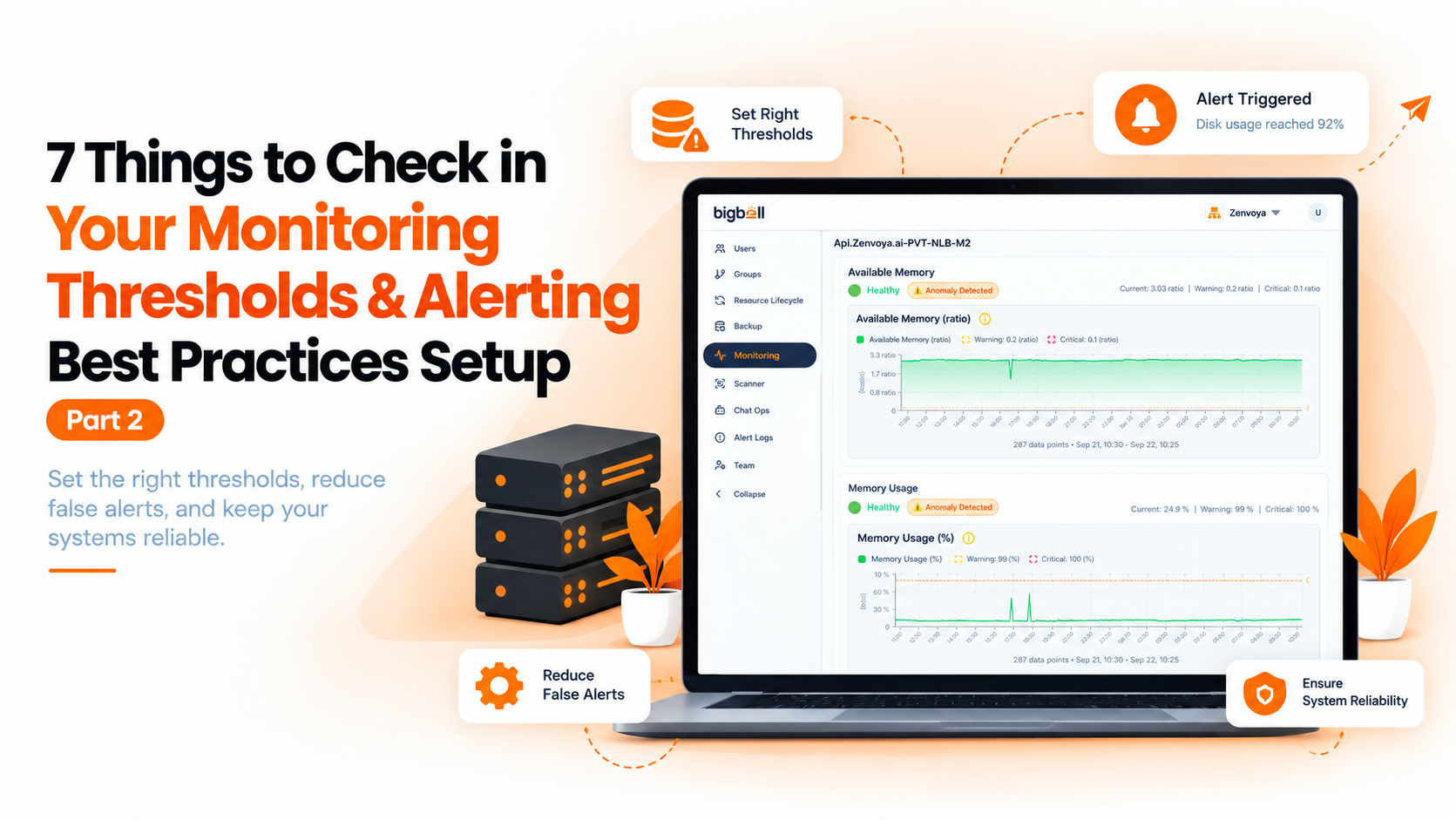
A default limit that suits a general-purpose VM will fire constantly on a busy database host and stay silent on a machine that should never be busy. Take each VM's normal range from a week of real data, then set warning and critical levels that reflect it. Revisit them after any change in size or workload.
A disk can be nearly empty and still be the bottleneck if it's handling more read and write operations than it's provisioned for. Slow disk activity looks like a slow application, and it won't show up on a free-space chart. Check that disk operations are monitored alongside capacity, particularly on database and logging hosts where the load is steady.
Server metrics tell you the VM is healthy, not that customers can reach it. A firewall rule, a crashed process, or an expired SSL certificate can leave a healthy VM serving nothing. An external check on each public URL covers what internal metrics can't, and it measures response time as well as availability.
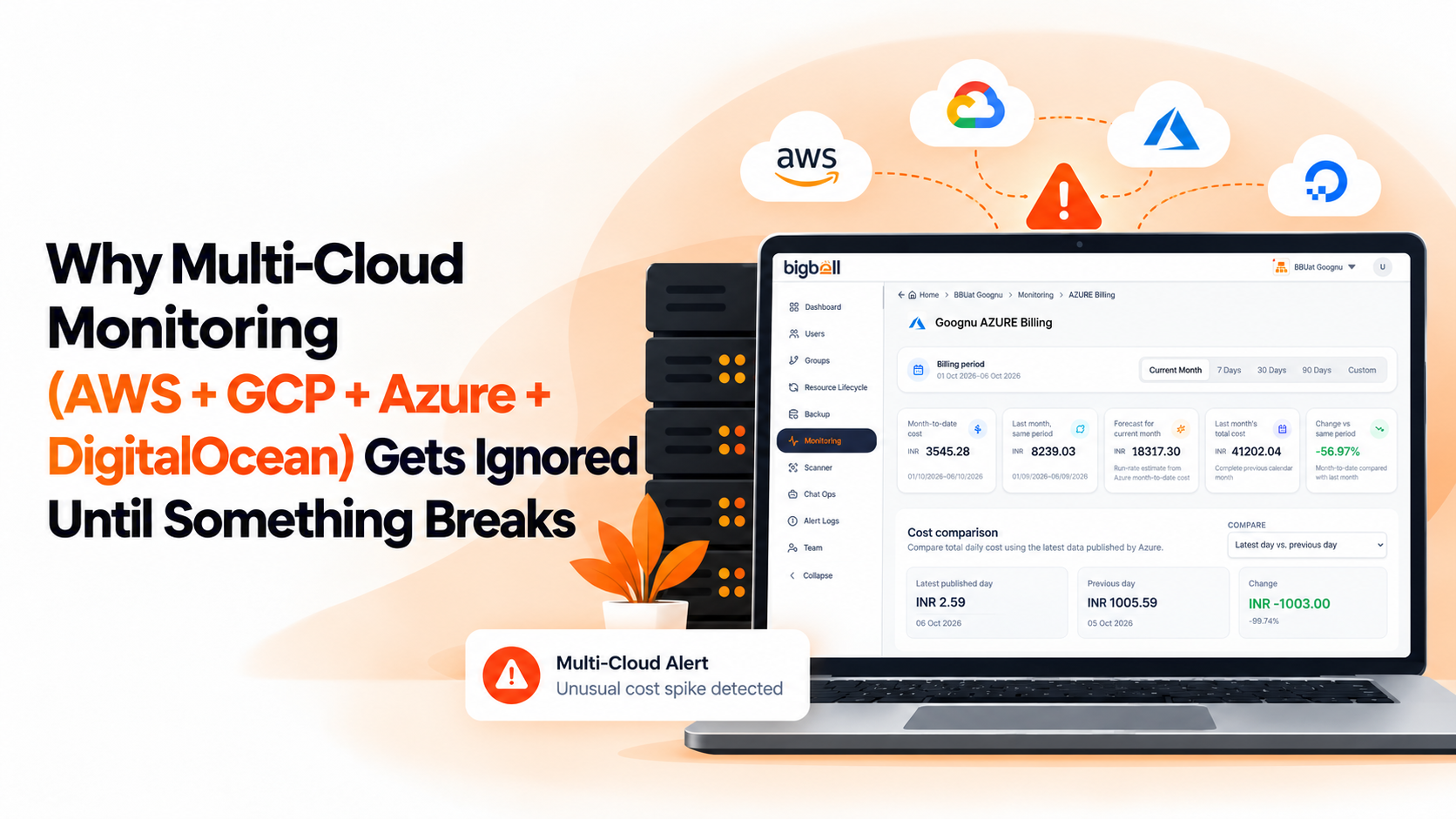
Cost problems on GCP are often the first sign that something is wrong, such as a VM left running after a test or one far larger than its workload needs. Watching billing next to health data means you find these in days, not at the end of the month. It also gives you a way to confirm that a cleanup actually reduced cost.
Start with a short list of questions. Does the tool read your VMs in every zone you use? Can it show memory as well as CPU? Can you set limits per VM instead of one global default? Can alerts go to specific teams through channels they check? And does it show cost beside performance?
Then test it against a real VM, not a demo. Break something small on purpose, such as filling a test disk, and see how long the alert takes to reach the right person. A tool that looks good in a feature list can still fail on the details that decide whether you hear about a problem in time.
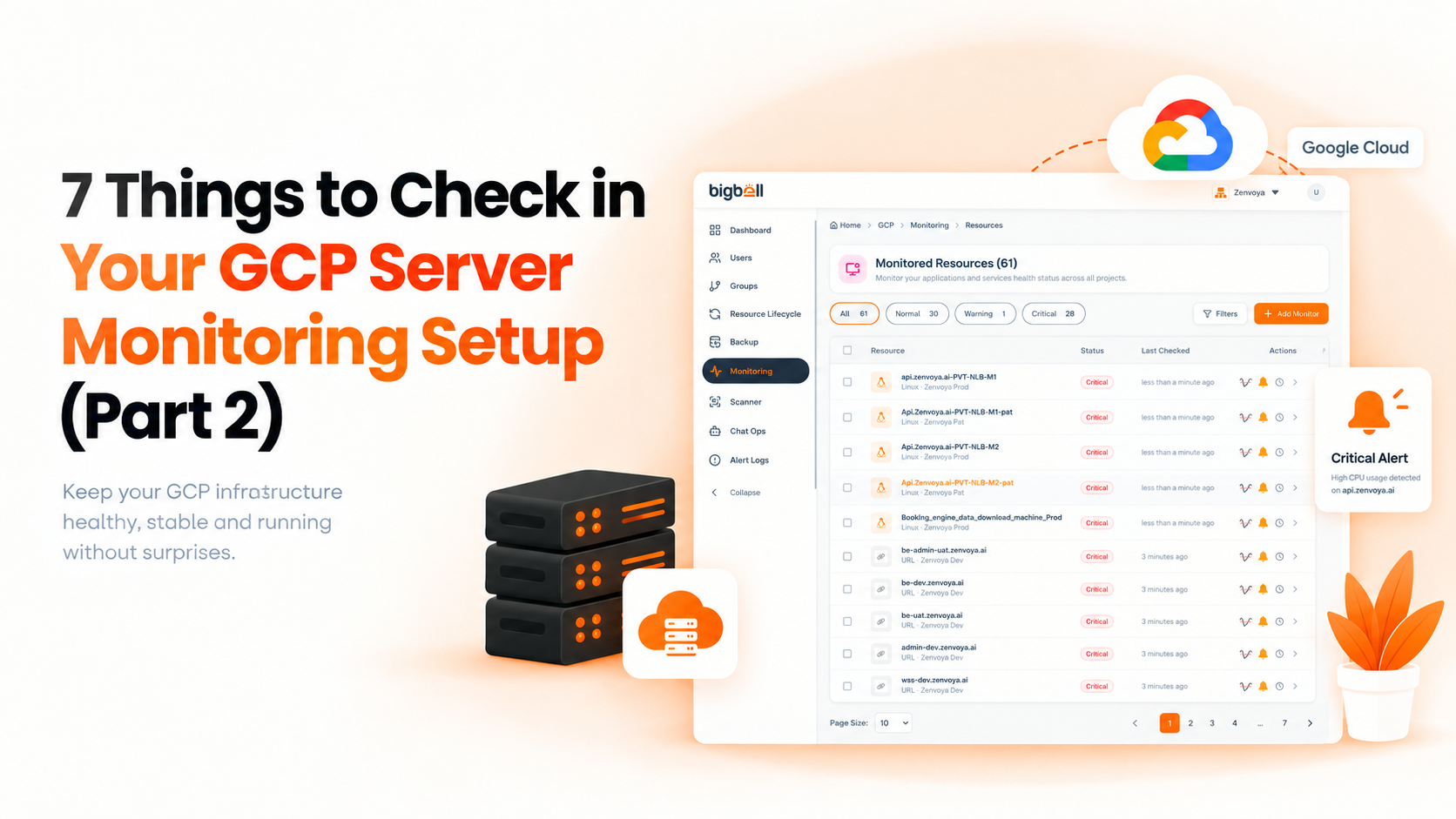
BigBell connects to GCP using your credentials and monitors Compute Engine virtual machines. For each VM it reads CPU utilization, memory utilization, disk activity, and uptime check status from Google Cloud Monitoring, so you see them together. It also tracks GCP billing.
Thresholds are set per resource with separate warning and critical values, and a configurable delay filters brief spikes. Alerts can be routed at the organization, project, or application level to email, Slack, Microsoft Teams, Google Chat, WhatsApp, SMS, or a phone call, and a recovery notification is sent when a resource returns to normal. BigBell's URL and SSL monitoring checks public endpoints from outside your infrastructure. You can read more on the BigBell monitoring page.
Why is my GCP VM's memory graph empty? Memory usage depends on Google's monitoring agent running on the VM. If the agent isn't installed or isn't reporting, the memory data won't appear even though CPU data does.
What GCP resources does BigBell monitor? Compute Engine virtual machines, plus GCP billing.
Why do I need to think about zones? VMs live in specific zones, and they're listed by zone. If you only check one, instances in others can go unmonitored.
What access does BigBell need in GCP? Credentials for the project that hold your VMs. Give the service account the narrowest access that still lets it read VM details and metrics.
Should every VM share the same thresholds? No. Set limits from each VM's own normal range, since a database and a lightweight service behave very differently.
Why watch disk operations as well as disk space? A disk that's busy can slow everything down long before it's full, and free-space alerts won't show it.
Does BigBell replace Google Cloud Monitoring? BigBell reads data from Google Cloud Monitoring and adds per-resource thresholds, delay, routing, and recovery notifications alongside your other servers and costs.
What should I check first when a GCP VM alert fires? Look at what changed recently, such as a deployment or a traffic increase, then compare CPU, memory, and disk activity together. A problem in one often shows up in another.
How do I stop alert noise on GCP? Set thresholds per VM, add a short delay so brief spikes don't alert, and route each project's alerts to the team that owns it.
Is it worth monitoring test or temporary VMs? Yes, at least lightly. Test VMs often become production dependencies, and they're also the ones most often forgotten and left running.
How often should I review my GCP monitoring setup? At least quarterly, and whenever you add a project, zone, or team. Thresholds and routing drift as the environment changes.
Can I get help planning my GCP setup? Yes. You can contact the BigBell team with questions about your own environment.
Related reading: AWS server monitoring, 2027 refresh, multi-cloud server monitoring, Part 2, and memory utilization monitoring, Part 2.
Ready to try it on your own VMs? Try BigBell free.