Published Oct. 5, 2024
It's the middle of a flash sale, traffic is climbing fast, and somewhere between the product page and checkout, things start slowing down. Nobody notices until customers start abandoning carts and support tickets roll in. By the time someone checks the server, the sale's momentum is already gone. This is the exact scenario proper ecommerce server monitoring is meant to prevent — not by predicting every spike, but by making sure someone knows the moment things start to strain, instead of finding out from lost revenue.
This guide walks through setting up monitoring that actually covers what an e-commerce site needs, step by step, along with the mistakes that quietly undermine a setup that looks complete on paper.
An e-commerce site has less room for error than most other kinds of applications. Every minute of slowdown or downtime during checkout is a minute of lost sales, not just an inconvenience, and traffic on these sites is rarely steady — a sale, a marketing email, or a seasonal spike can multiply load in minutes. A setup that copes fine on a normal Tuesday can buckle the moment real demand shows up.
Trust matters more here too. A shopper reaching an error page while trying to pay doesn't usually come back to retry — they assume something's wrong with the store, not a temporary blip, and they take their order elsewhere. That reaction happens fast, which is exactly why monitoring needs to catch a problem before a meaningful number of shoppers ever see it.
1. Identify what actually needs watching. Start with the servers running your storefront and checkout, and the specific customer-facing pages that matter most — your homepage, product pages, cart, and checkout flow.
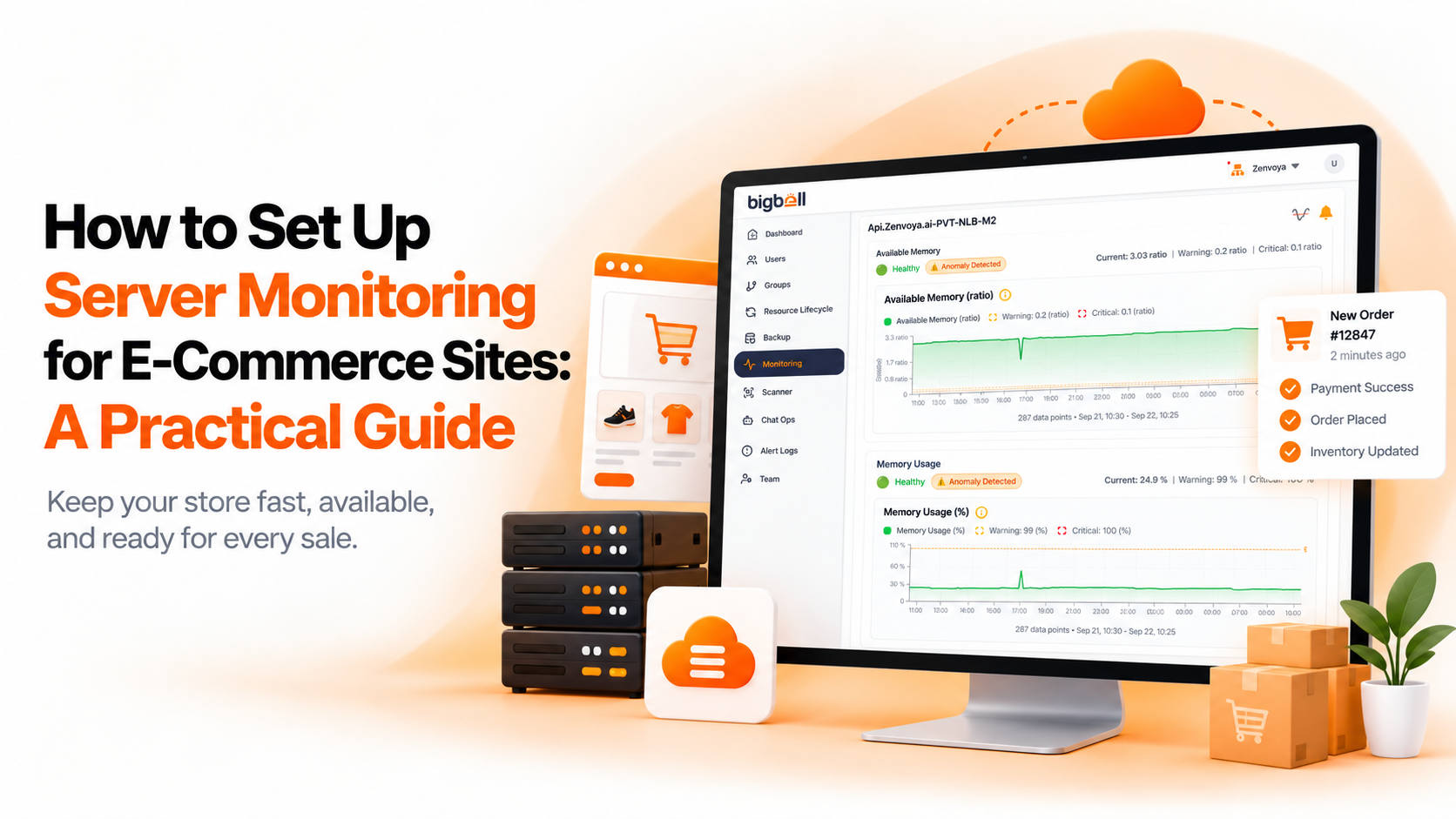
2. Set up server-level monitoring. Track CPU, memory, and disk usage on every server involved, not just the main one. A backend job server running out of memory during a sale can back up orders just as badly as the storefront itself struggling.
3. Add external checks on customer-facing pages. Monitor your storefront and checkout pages with real HTTP checks from outside your own network, tracking both status code and response time, so you catch what an actual shopper would experience.
4. Track SSL certificate expiry separately. Checkout runs over HTTPS, and an expired certificate blocks payment entirely. This should be checked on its own schedule, not assumed to be covered by your uptime check.
5. Set thresholds for your actual traffic pattern. A threshold that works on a normal day may be meaningless during a planned sale. Set limits based on how your servers behave under real load, and revisit them before major traffic events.
6. Add a delay before alerts fire, and route them properly. A brief spike shouldn't page your whole team, but a sustained one should reach whoever can actually act on it, through a channel they're watching in real time.
7. Confirm recovery notifications work. After an incident, you need to know it's actually resolved, not just assume it based on silence.
Monitoring only the server and not the pages customers actually load is one of the most common gaps — a healthy server can still serve a broken checkout page. Ignoring SSL expiry until it silently blocks payment is another; it's entirely predictable, yet it still catches teams off guard.
Using default thresholds without adjusting them for your own traffic is a quiet failure mode too — they either fire constantly on a busy day or stay silent right when you need them most. And sending alerts to an inbox nobody actively watches during a live incident defeats the entire point of monitoring in the first place.
BigBell's monitoring covers each of these steps directly. A lightweight agent tracks CPU, memory, and disk usage on any Linux server, and for servers running as cloud virtual machines, BigBell pulls performance data straight from AWS CloudWatch, Azure Monitor, or Google Cloud Monitoring depending on where they're hosted.
For your storefront and checkout pages, BigBell's URL monitoring performs real HTTP checks, tracking status code and response time as its own metric, and calculates a checksum of each response so unexpected content changes get flagged even when the status code looks fine. SSL certificate expiry is tracked independently, catching an expiring checkout certificate before it becomes a payment outage.
Thresholds are set per server or page rather than one blanket default, and a configurable delay keeps a brief spike from triggering unnecessary alerts, while a recovery notification confirms once things are back to normal. Alerts can be routed at the organization, project, or application level, reaching your team through email, Slack, Microsoft Teams, Google Chat, WhatsApp, SMS, or a phone call.
Book a demo and see this setup running against your own storefront.
Yes. A general uptime check on your homepage doesn't confirm checkout is working — it should be monitored as its own page, with its own status code and response time check, since it's the one step where a failure directly costs a sale.
Because checkout requires HTTPS, and an expired certificate blocks payment completely rather than just degrading the experience. It's also entirely predictable and unrelated to traffic, which makes it one of the easier failures to prevent if it's tracked on its own schedule.
Yes. Traffic during a planned sale can look nothing like a normal day, and thresholds set for average conditions may either miss real problems or fire constantly under expected higher load. Reviewing them ahead of a known high-traffic event is worth the few minutes it takes.
Not if a delay is configured. A brief spike has to persist before it counts as a genuine issue, which keeps alerts meaningful even when traffic is unusually high and fluctuating throughout a sale.
No. BigBell monitors the servers and pages that make up your storefront and checkout flow. Payment processing itself happens through your payment provider, which isn't something BigBell connects to directly.
Yes. Alerts can be routed at the organization, project, or application level, so an issue with checkout can reach a different team than a general server alert, rather than everyone getting paged for every issue regardless of relevance.
It catches unexpected changes to what a page actually returns — useful for spotting a checkout page that's silently switched to an error state or stale content while still returning a healthy status code, which a status check alone would miss.
Both. A recovery notification goes out once a server or page returns to normal, so your team doesn't have to keep manually refreshing to confirm an issue is actually over.