Published Oct. 5, 2026
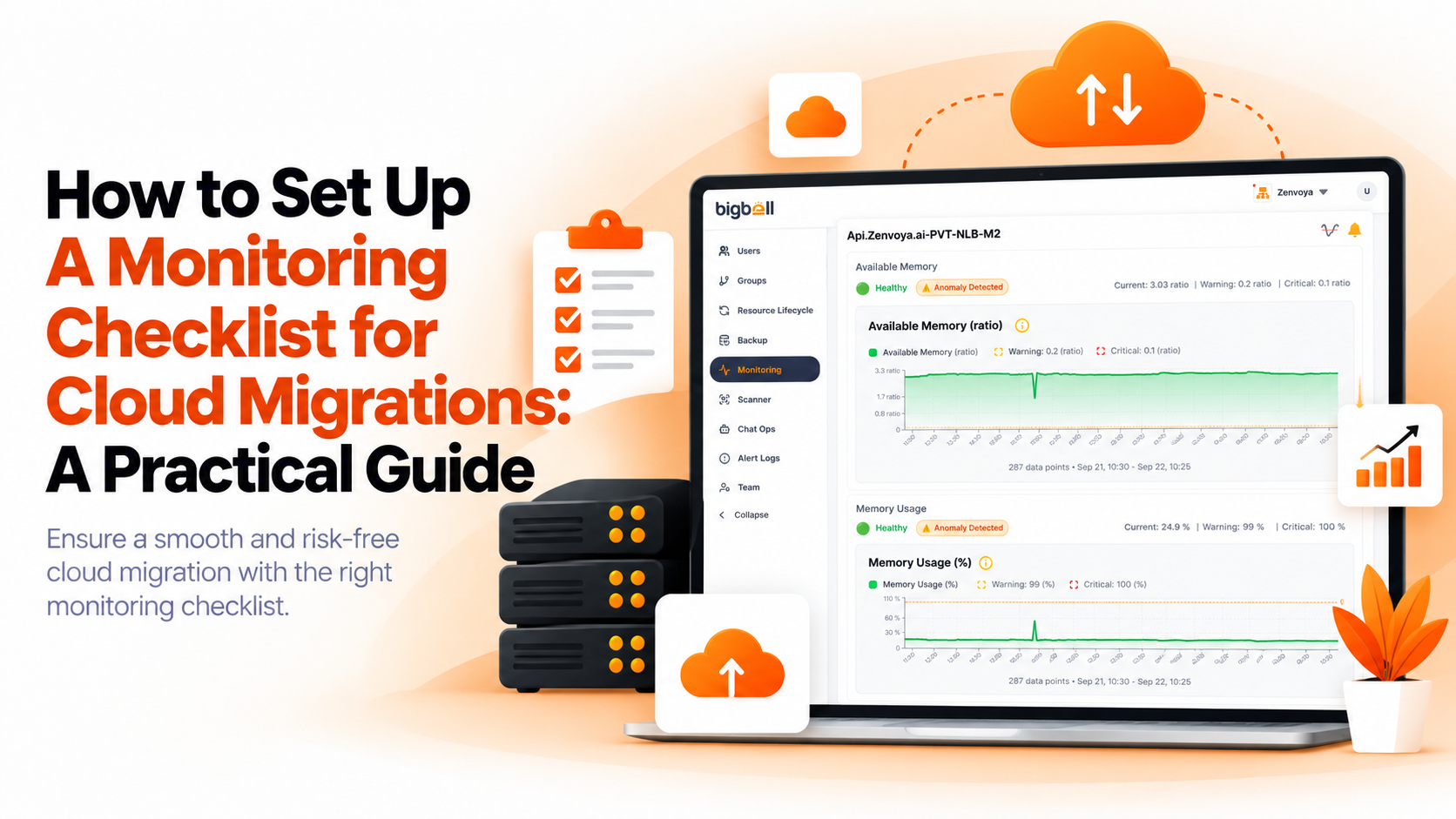
The cutover goes fine. The new environment is up, DNS has switched, and everyone goes home. Two days later a customer reports slow pages, a database is running hotter than anything on the old setup, and nobody can say whether that's new or just newly noticed. Teams hit this because migration plans cover moving workloads in detail, while the question of how to tell the move worked usually gets one line at the bottom. A cloud migration monitoring checklist fills that gap before the cutover instead of after the complaints.
This guide walks through building one, from the baseline you capture before anything moves to the checks you run after.
A migration changes almost everything underneath an application at once: the hosts, the network path, the database location, and often the cost profile. When something degrades afterward, the cause could be any of those, and without a record of how things behaved before, you're guessing.
There's also a gap in attention. During migration, the team watches the old and new environments closely. A week later, attention drifts back to feature work, and a slow leak in the new environment, like a disk filling up or a certificate nobody renewed, goes unnoticed until it becomes an outage. A checklist keeps the same discipline running past the first few days.
1. List what's moving. Write down every server, database, and public URL involved. Anything not on this list won't be monitored in the new environment, which is how forgotten internal tools end up silently broken.
2. Capture a baseline before cutover. Record normal CPU, memory, disk usage, and response times for each system in the old environment. These numbers are what you'll compare against, and they're also the starting point for sensible thresholds later.
3. Start monitoring the new environment early. Don't wait for cutover. Set up checks on the new servers while they're still idle or under test traffic, so you've confirmed alerts reach the right people before real users arrive.
4. Watch the public side from outside. Monitor each user-facing URL for availability and response time. Internal metrics can look healthy while customers see errors, so an external check is the closest thing to a user's view of the migration.
5. Set thresholds from the baseline. Use the baseline numbers to set warning and critical levels for each server rather than accepting defaults. A database that normally idles at 30% CPU needs a different limit than a batch server that routinely hits 80%.
6. Route alerts to the people running the cutover. During migration, the team needs alerts in a channel they're actively watching, and they need to know when something returns to normal, not only when it breaks.
7. Track cost in the new environment. Migrated workloads often cost more than expected in the first month. Watching cloud spend alongside performance catches an oversized instance or a forgotten test resource early.
8. Keep the old environment monitored until it's retired. If you need to roll back, the old setup has to be healthy. Decommission its monitoring only when the environment itself is gone.
9. Review after two weeks. Compare new numbers against the baseline, adjust thresholds that turned out too tight or too loose, and remove checks for anything that no longer exists.
The most common mistake is establishing no baseline at all, which turns every post-migration question into an argument. A close second is monitoring only the servers and not the public URLs, so a DNS or certificate problem shows up as a customer email instead of an alert.
Teams also tend to copy the old environment's thresholds straight across. Different instance sizes and network paths mean different normal ranges, so those numbers need rechecking. Finally, many teams treat the checklist as a cutover-week activity and drop it afterward, which is exactly when slow-building problems start to surface.
BigBell's monitoring covers the parts of this checklist that map to its actual features. URL monitoring checks availability and response time from outside your infrastructure, and it tracks SSL certificate expiry separately, which matters when certificates change during a migration. Server monitoring covers CPU, memory, and disk, and BigBell supports AWS resources such as EC2 and RDS, along with Azure and GCP virtual machines.
Thresholds are set per resource with separate warning and critical values, and a configurable delay stops short spikes during cutover from becoming alerts. Alerts can be routed at the organization, project, or application level to email, Slack, Microsoft Teams, Google Chat, WhatsApp, SMS, or a phone call, and a recovery notification is sent when a resource returns to normal. BigBell also tracks billing for AWS, Azure, and GCP, so cost changes after a move are visible.
BigBell doesn't perform the migration itself, and it doesn't automatically compare before-and-after metrics, so the baseline in step 2 is something your team records.
Book a demo and see how this checklist looks on your own infrastructure.
Before cutover. Setting up checks on the new environment while it's still under test confirms your alerts work and gives you early data, so you aren't configuring monitoring during the most stressful part of the move.
CPU, memory, disk usage, and response times for each system that's moving, ideally across a normal business cycle rather than a single quiet day. These are the numbers you'll compare against after cutover.
Yes, for as long as a rollback is possible. The old environment has to stay healthy until you're confident in the new one, and monitoring it is cheap compared with discovering it broke during a rollback.
Servers can look healthy while users still see errors from DNS, routing, or an expired certificate. An external check on each URL catches what internal metrics miss.
No. BigBell monitors infrastructure before, during, and after a migration, but the migration itself is done with your own tools or provider.
At least two weeks, with a review at the end. Slow problems like growing disk usage or creeping costs often take that long to appear, and the review is when you tighten thresholds based on real behavior.
Not automatically. Instance sizes, network paths, and database locations all change, so check the old values against the new baseline before carrying them over.
Start recording now. Even a few days of data from the old environment, if it's still running, gives you something to compare against. If it's already gone, treat the first stable week in the new environment as your baseline and tighten thresholds from there.
The people actually running the migration, through a channel they're watching in real time. Once things settle, routing can move back to each resource's usual owner so the migration team isn't paged for months afterward.
Yes. First-month costs often differ from estimates, and spotting an oversized or forgotten resource early is much cheaper than finding it on the invoice.